
At last, I’m part of the iPad gang, and I’m loving it…most of the time!

This M4 iPad Pro has very quickly become my go-to computer – and make no mistake about it, the iPad Pro is a computer, and in my case, possibly one of the fastest ones I own, so why wouldn’t I want to use it as much as possible?
The M4 iPad Pro continues to both surprise and frustrate me, but one thing is for sure I’m hooked! In fact, over the past few weeks, I’ve found myself reaching for the iPad Pro over my Mac.
Somehow it just seems to feel different, even more creative, and it kinda gives me a new lease of life when I work on it. All that said, working full-time on an iPad Pro isn’t perfect, and you have to be the kind of person who wants it to work.
So I’m going to chat about the things that continue to irritate & frustrate me in a bit, but as I use the iPad Pro more & more, I keep coming across new iPad keyboard shortcuts. I’ve started using these latest shortcuts, and they’ve helped to raise my productivity hugely, so I wanted to share them with you.
Some you may already know and use, others you might not, but first, let’s take a quick look at what we got with the latest iPadOS beta that was seeded last week.
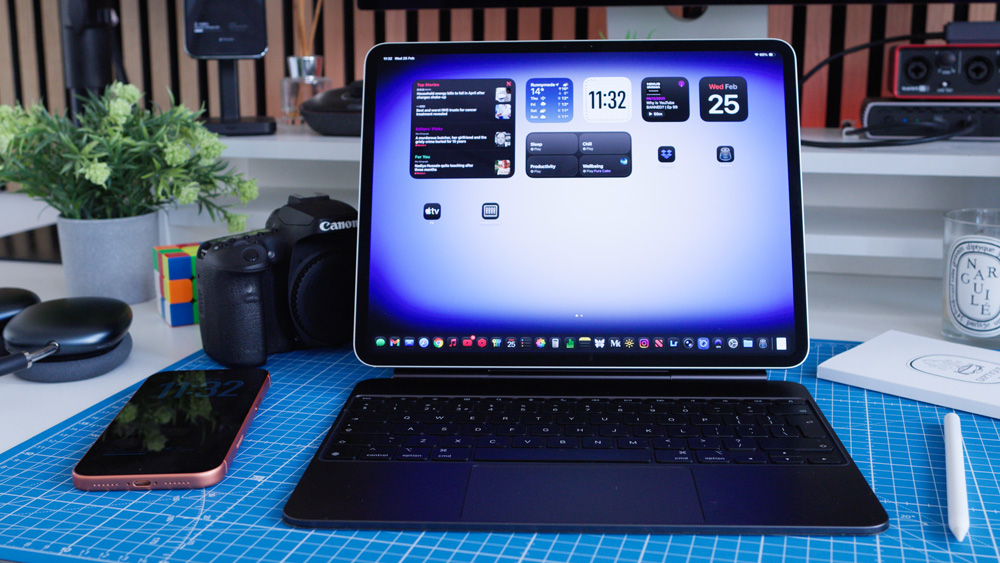
Picking up the M4 iPad Pro
We’ve just had an update for the iPad in the guise of the beta version of iPadOS 26.4.
After I’d spent some time going through it, there wasn’t that much worth mentioning – and there were certainly no signs of those rumoured improvements to Siri that we’d heard about.
It now looks as if we’ll have to wait for the release of iPadOS 27 before we get all the bells and whistles, as the Apple boffins still seem to be struggling to deliver a fully interactive, chatbot-style Siri.
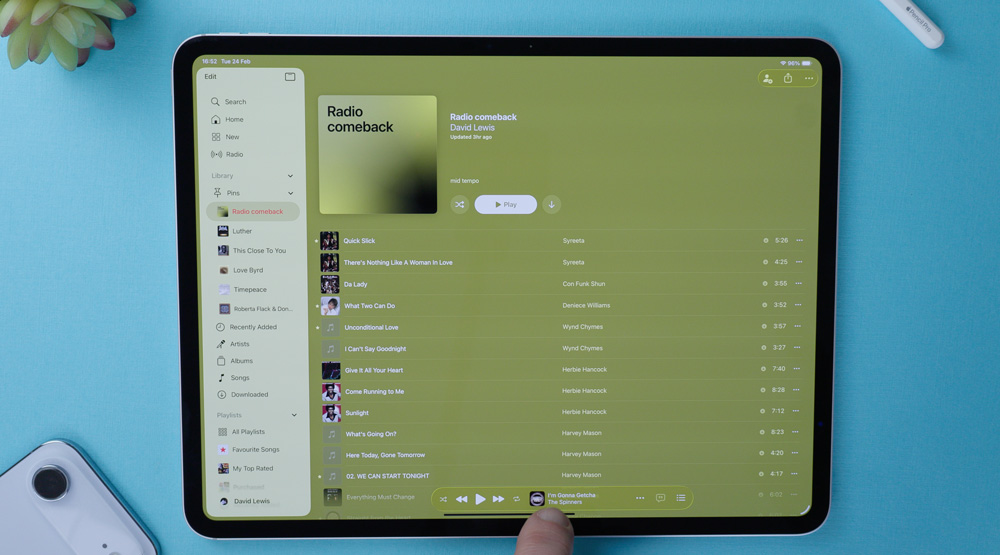
From what I can make out, this update was centred around improvements to Apple Music. For starters, we now have full-page artwork that better matches the album artwork, which is a neat little UI touch.
If live gigs are your thing, you’ll now find local gigs from artists that the app’s algorithm thinks suit your listening style listed at the bottom of the Home page, or you can also find them under the artist’s bio. The dates will even sync to your calendar.
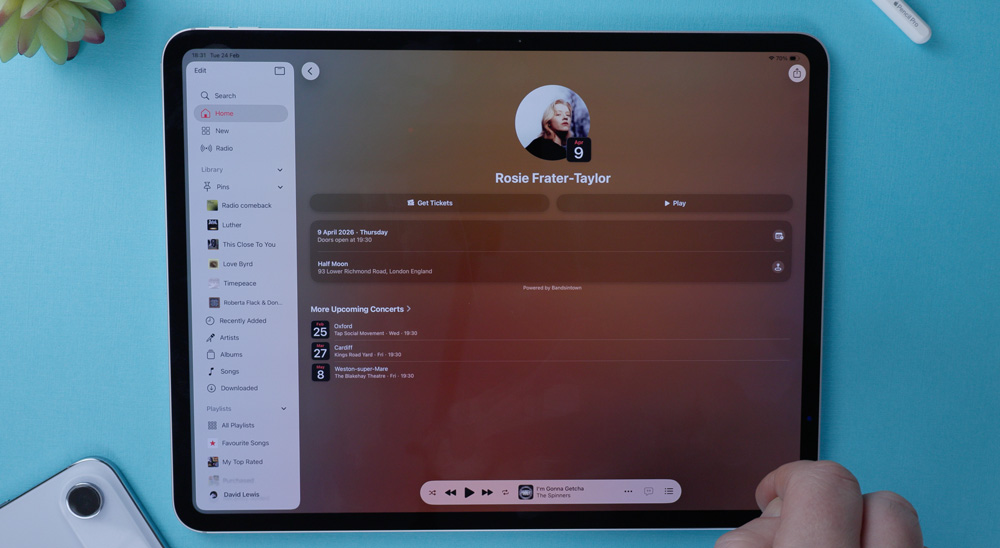
Speaking about the algorithm for a moment, Apple Music is way better at suggesting music that I want to listen to now. If I’ve spent a few hours listening to music from my library or from the home page, the suggestions that the algorithm is now throwing up are way better than before.
This morning was a prime example – it threw up Leon Ware, whom I’d not listened to in ages. I’m currently on my second album!
In many respects, the Music app seems to finally be catching up with Spotify – except with better quality audio, of course!
Although I can’t seem to find the functionality on my beta version, you can now create AI-curated playlists. That said, I don’t think it’s something I’d use much anyway – ten years in live music radio means I have a pretty good idea of what I want to listen to!
There’s now an Ambient music widget you can add to the homepage of your iPad.
You’ll get to choose from Sleep, Chill, Productivity and Wellbeing, and you can even adapt the style of each of those categories to suit your taste as well.
Again, mimicking Spotify, Apple Podcasts has added video if you like to watch as well as listen to your podcasts.
But that was more or less it. There were a few minor cosmetic changes to how you can view tabs in Safari, and the layout of the Wallpapers section has been updated a bit – but honestly, that was about it!
Living with an iPad
The more time I spend working on the iPad, the more I both fall in love with it and find out about it.
I’m invested in it now, and that’s kind of the thing with the iPad Pro, as I mentioned, you need to want it to work. In honesty, much of what we do on an iPad Pro could be done on a phone, and nearly all of it could certainly be done on a Mac, but doing it on an iPad sometimes suits me better.
Working on an iPad is an emotional choice – a cognitive decision, even.
For me, when I choose to work on the iPad, which now, in one way or another, is most days, it represents a more unrestricted and free way of working. In some instances, it’s the best way to work, and because of the touch screen element – whether that’s with your finger or the pencil, it’s a more personal and tactile way to work too.
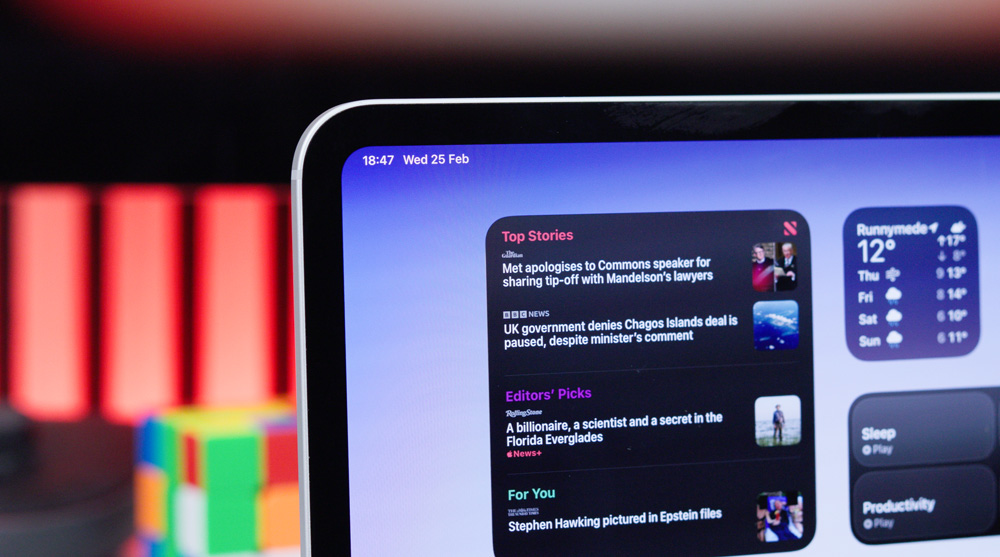
There’ll be frustrations and certain limitations to working on an iPad, but those are the days you’ll need to persevere. In nearly all situations, there will be workarounds, you just have to play around to work them out.
And the good news is that if you’ve grown up working on a Mac, and that way of working is buried deep in your DNA, well, working on an iPad is becoming ever more familiar to that experience.
We now have the familiar traffic lights that you’ll immediately feel at home with and the file menu at the top of each app, just like on a Mac.
Frustrations
As I mentioned, there will be frustrations when you just know it would be easier or quicker on a Mac.
Most of the time, I found ways to get around those problems, but now and again, I will come against a brick wall. The Apple Magic Keyboard that I use on my iPad most of the time will randomly stick for no apparent reason.
And another bugbear of mine is that in Ulysses, the page doesn’t naturally scroll as I reach the bottom of the page. I don’t think I’ve missed any settings, but I have to manually scroll the page up. It’s not a huge issue – just annoying.
Now I know this one may be app-related and not a fault of the iPad – I spend hardly anytime writing in other apps, so I wouldn’t know, but it’s a pain. What’s been your experience?
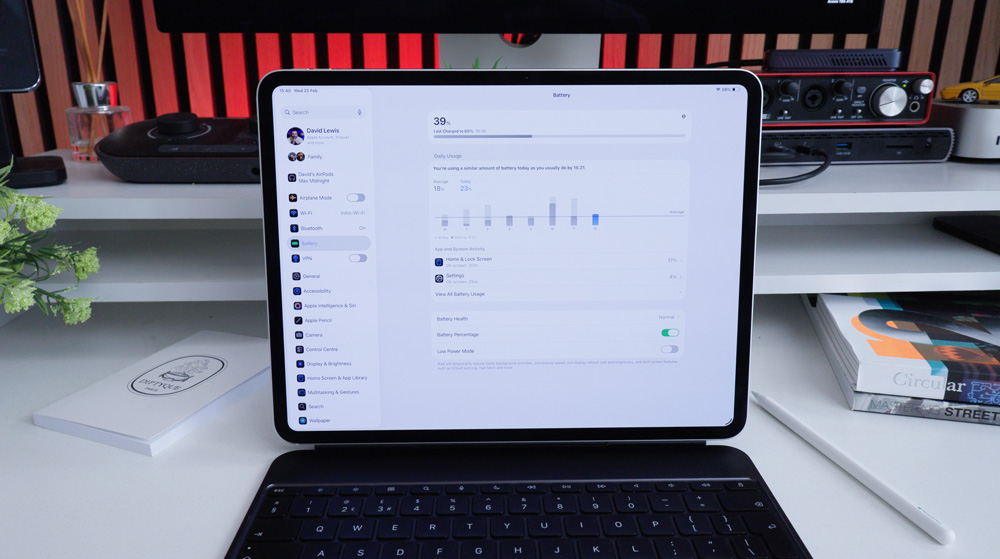
I know we’re told that the battery life is stunning on iPads, but I’d beg to differ. It’s good but not amazing. Apart from my Lightroom work, most of my work on the iPad isn’t massively intensive, but the battery will drop to around 20% much quicker than I’d like. Put it this way, I don’t get eight straight hours or a full working day out of it.
The biggest culprit for draining the battery seems to be the screen brightness. The Tandem OLED display is undeniably gorgeous to both look at and work on, but, seemingly, it comes at a cost.
All that said, the screen is almost too bright at its brightest when I’m working indoors, so cranking it down to around 50% is no big hardship.
And I came across another issue today. I had about 70 raw picture files (CR3) that I wanted to upload to my NAS. I attached a card reader to the iPad and imported them to a folder that I’d created in my downloads folder in the Files app, but trying to batch-upload was a no-no. I tried everything I could think of, but other than uploading them one by one, I couldn’t find a workaround.
In that instance, I had to head back to the Mac.
Shortcuts galore
One of the advantages of spending so much time recently on the iPad is that I’ve found numerous keyboard shortcuts that have sped up my working day no end.
I have created a free PDF that you can download to save and help you get used to them, but they’ve become a huge part of my productivity drive on the iPad. I’m not going to list them all here – just some of the ones I’ve come across over the past week or so that you may want to try.
If you have a few windows open that you want to rearrange either vertically or horizontally, try pressing the Shift/Globe/Control/ and any of the four arrows to quickly change the layout. If you want to go full screen with any of those apps, then you’ll need Globe & F.
Screenshots on an iPad are a way more satisfying experience than on a Mac. Assuming you have an Apple Pencil, flick up from the bottom left of your iPads screen. Then you’ll see four grab handles to select the area you want, and that’s it! Save it to your downloads, and you’re done.
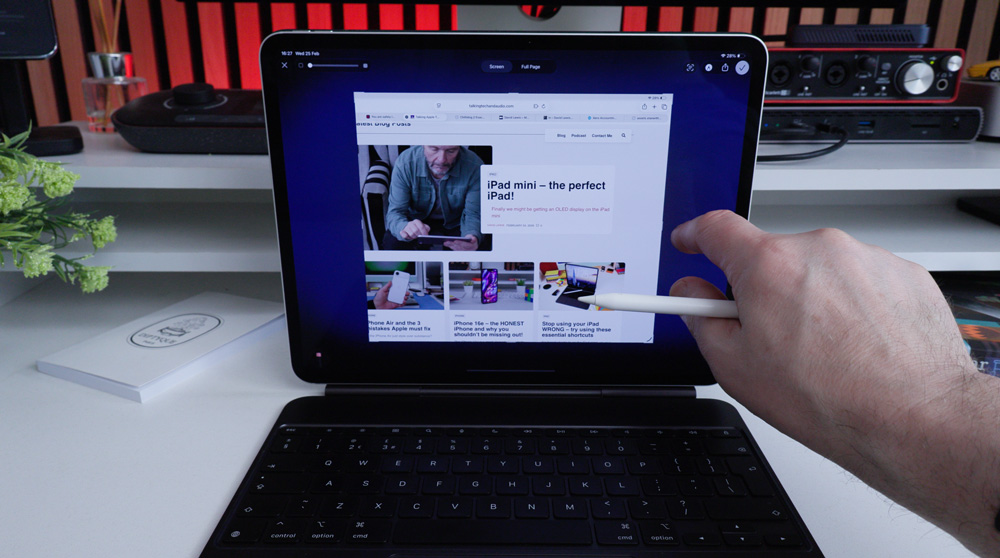
Have you ever noticed that solid black or white bar at the bottom of your page when you’re in full-screen mode on the iPad? I never knew what that was for. I simply thought it notified the bottom of the page – but, no!
Using your finger, it allows you to swipe between all the full-screen apps you have open. Mystery solved!
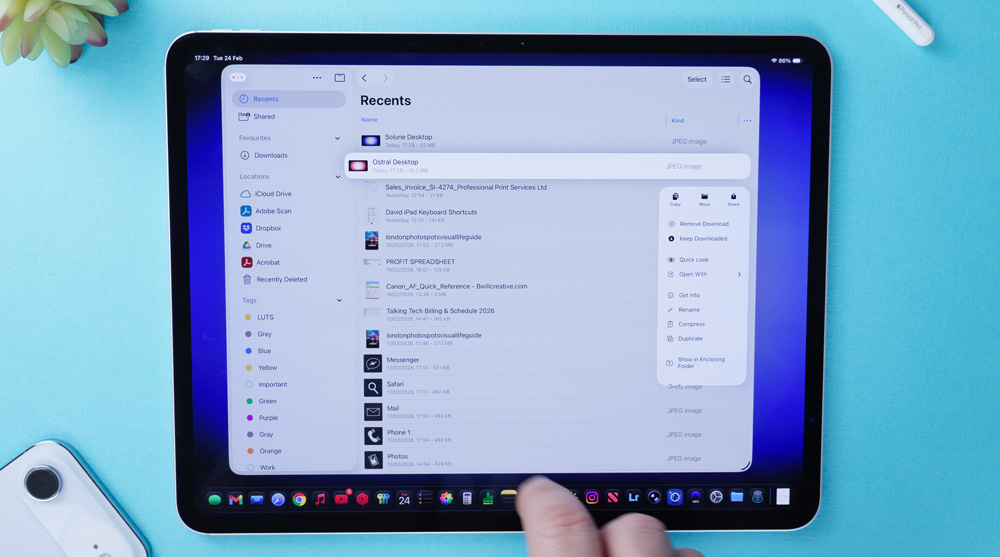
Just like on a Mac, you can change the app you want to act as a default to open certain file types. Long-press on a file and look for get info and then always open with. It’s a one-and-done thing that’ll improve your productivity.
Command & Tab will show you a row of app icons you have open in the middle of your screen and will let you search from left to right. But should you wish to search from right to left, then use Command/Tab/Tilda instead.
As you start to use your downloads folder more, the more files you’ll obviously have in there, and the harder it might be to see what you have. The iPad shows the downloads folder as a fan view out of the box. But you can switch it to a grid layout by simply long-pressing it, and you’ll then see the choice to switch to grid or fan view.
If you have numerous keyboards loaded on your iPad, you can quickly see those by pressing the globe key – this one works with the Magic Keyboard detached and using the iPad as a tablet and using the on-screen keyboard.
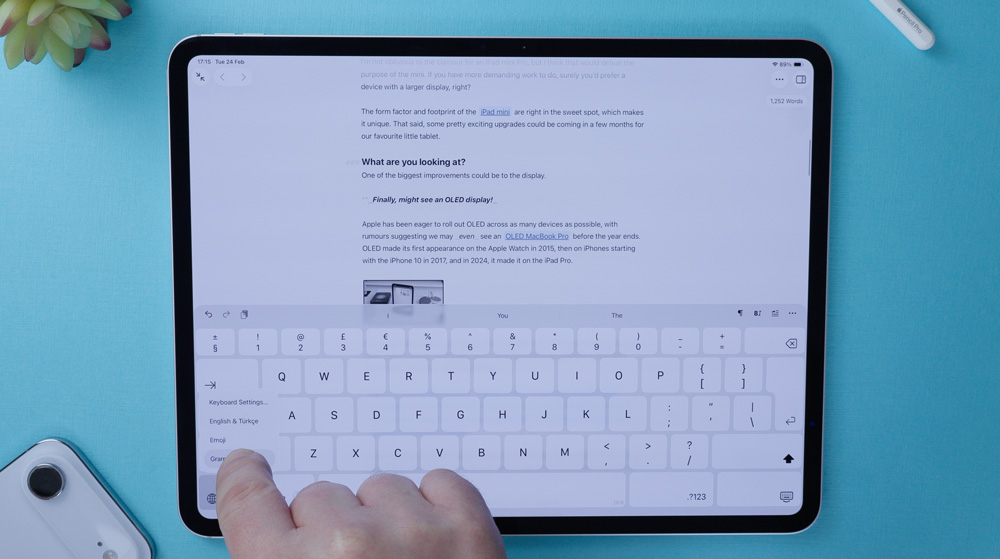
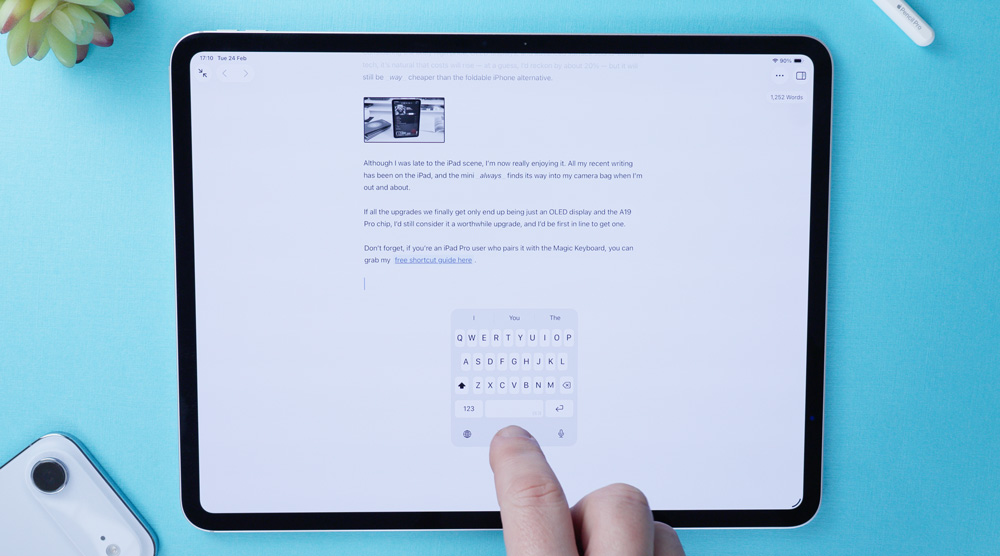
While you have the iPad detached, try this out. Long-press the space bar, and you’ll find it turns the iPad into a giant trackpad, which is pretty cool. And if the on-screen keyboard is taking up too much space, why not turn it into a miniature floating keyboard?
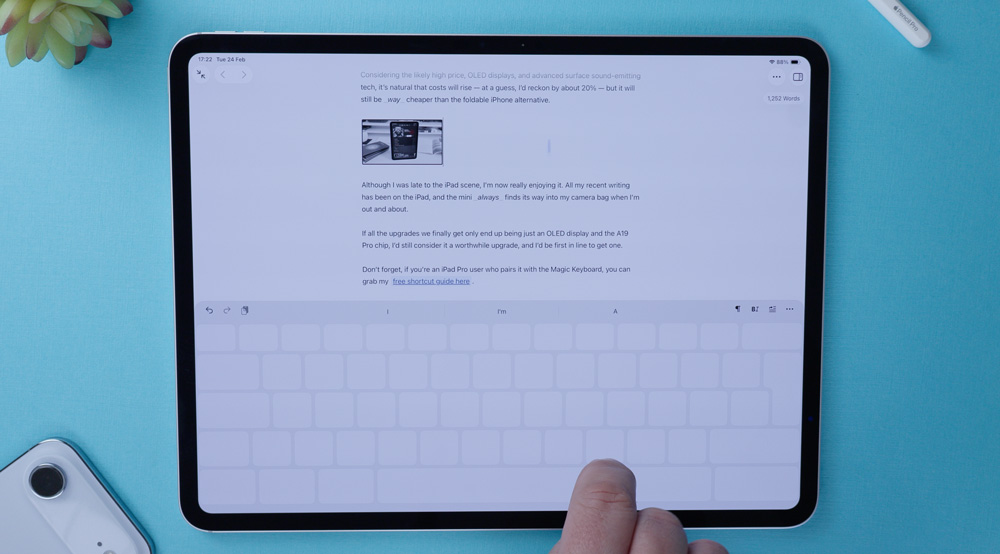
There are two ways you can go about this. Either use two fingers to pinch the keyboard, or press the keyboard key in the bottom right corner.
And don’t forget that you have a super convenient search feature on your iPad as well.
With the keyboard attached again, press the Globe & H keys to get to your Home Screen, and then flick down from the centre of the iPads screen for search. It can act as a quick calculator, a currency conversion app or a mini Safari – it’s super quick and handy. With the keyboard attached, you can also press Command & space bar to bring up search as well.
And saving the best until last, this shortcut has been a great find!
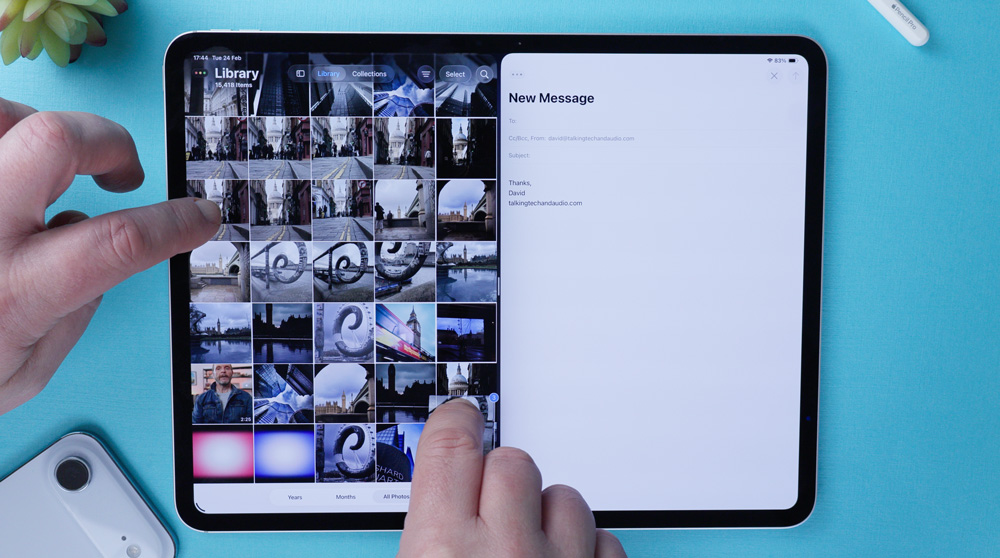
If you want to add four or five images to an email, for instance, you don’t need to do it one image at a time. In your photo library, long-press the first picture and then give it a little wiggle. While still pressing on it, with your other hand select the other pictures you want, and you’ll find it’ll create a little stack for you. Then all you need to do is drop that stack into your email, and you’re done!
Loving iPad life
Getting used to working on the iPad Pro over these past few weeks has been fun.
I’ve put a lot of effort into learning how to meaningfully use the iPad as a work tool, and it’s been a revelation as to how much I can get done on it.
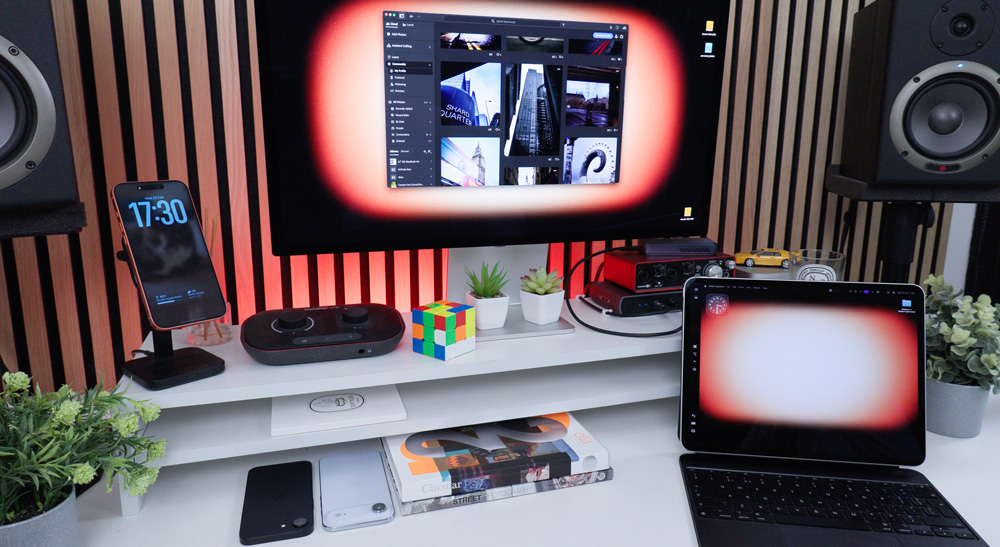
I mean, it’s great by itself, but when you use it as part of your Apple ecosystem, it genuinely shines. I know there’s nothing new about Sidecar or Universal control, but hell, it makes the iPad feel so integral to your desk setup. Try not to always think of the iPad as a standalone device all the time, and you’ll quickly reap the benefits.
As I’ve mentioned, working on an iPad isn’t perfect, but it is bloody rewarding!

2 responses
Totally agree about the M4 iPad Pro feeling different and more creative! The shortcuts really have boosted my productivity too. Glad you shared!
Thats great – I’m so happy they’ve been helpful