
When you start to use these, you’ll be amazed at how quickly you can work
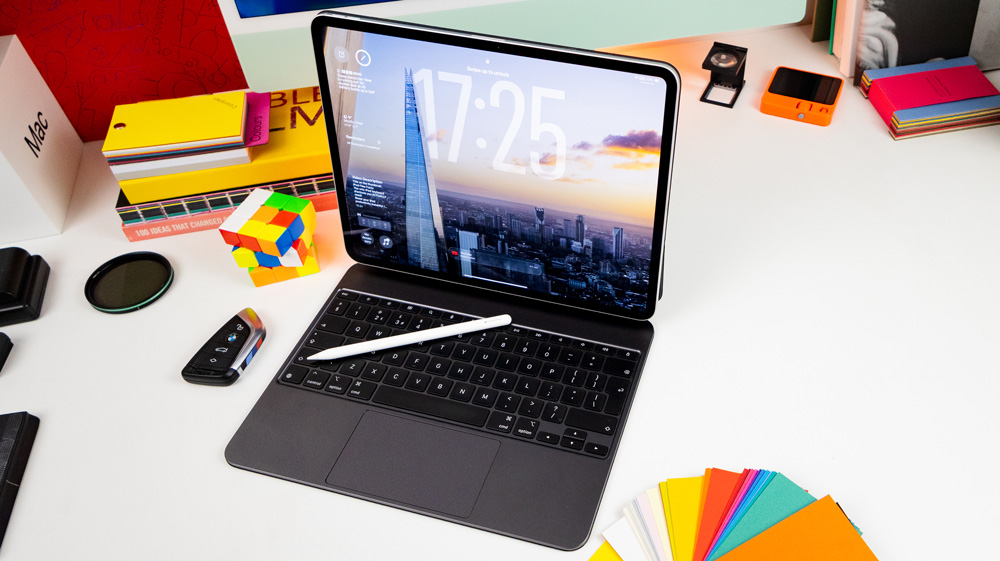
iPad keyboard shortcuts – do you use them?
A few weeks back, I mentioned that I think the iPad comes to life and starts to shine when you begin to lift it from the keyboard and use it the way it was intended – as a tablet.
I stand by that. The iPad was designed to be touched. It still responds best to files and apps being resized by fingers rather than a trackpad or pencil.
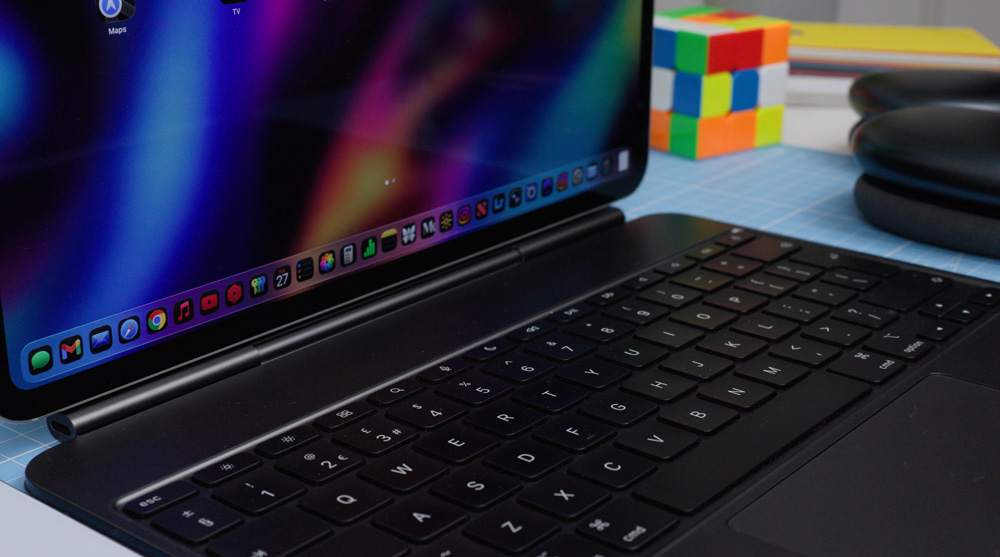
That said, there will still be days when you’ll need to hook the iPad up to a keyboard to get your work done. For example, I’m writing this story on my M4 iPad Pro using the Magic Keyboard – when I know I’m in for a solid few hours of writing, it’s the only sensible option.
If you’ve been reading me lately, then you’ll know I’m having a bit of an iPad epiphany. Out of nowhere, I can’t get enough of it. Now I find I’m reaching for the iPad ahead of my Macs for everything except video or audio work.
The recent improvements to iPadOS 26 have meant that now it’s a solid & convenient choice to get through a day’s work. It’s equally as fast, and in some respects just better than a Mac.
But as it quickly started to become my main go-to device, I knew I needed to speed up my workflow techniques, which is why I began to look into iPad keyboard shortcuts. I use shortcuts all the time on my Mac for maximum efficiency, so I figured I should be doing the same on my iPad.
In case you’ve not worked them out yet, I’m going to run through some of my favourite iPad keyboard shortcuts that I find speed up my day and, in turn, improve my iPad productivity.
This is by no means intended to be a complete list of iPad shortcuts, just the ones I’ve stumbled across that help out when I’m working on the iPad.
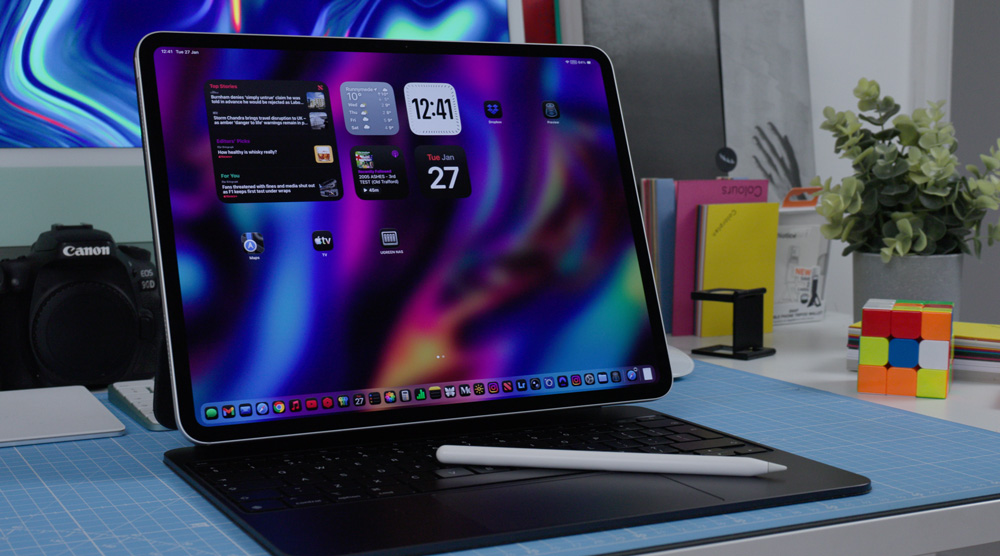
I’m going to break them down into three categories: general iPad shortcuts, some I use specifically for Safari and lastly, some that have proven useful in the Mail app.
iPad keyboard shortcuts
Just for reference, I’m using Apple’s Magic Keyboard. I’ve used two or three keyboards with my iPad. None of them is perfect – even this hideously expensive one from Apple can be glitchy.
I’m sure that most keyboards will behave similarly, but just in case any of these shortcuts don’t work for you, it could be keyboard-related. I’ve also created a free PDF for you to downloadthat you can save and refer to. I promise, as you start to use them, they’ll quickly become second nature, but this PDF might help you as you’re letting them sink in.
Before we get into the Shortcuts, though, do you remember the fuss made about the row of function keys that Apple added to the latest Magic Keyboard? Apart from the brightness and volume keys, there are four others I find handy – Exposé, Search, Focus Modes and Siri.
If you’ve bought the Magic Keyboard, then you’ll have spent a small fortune, so you may as well get the most from it!
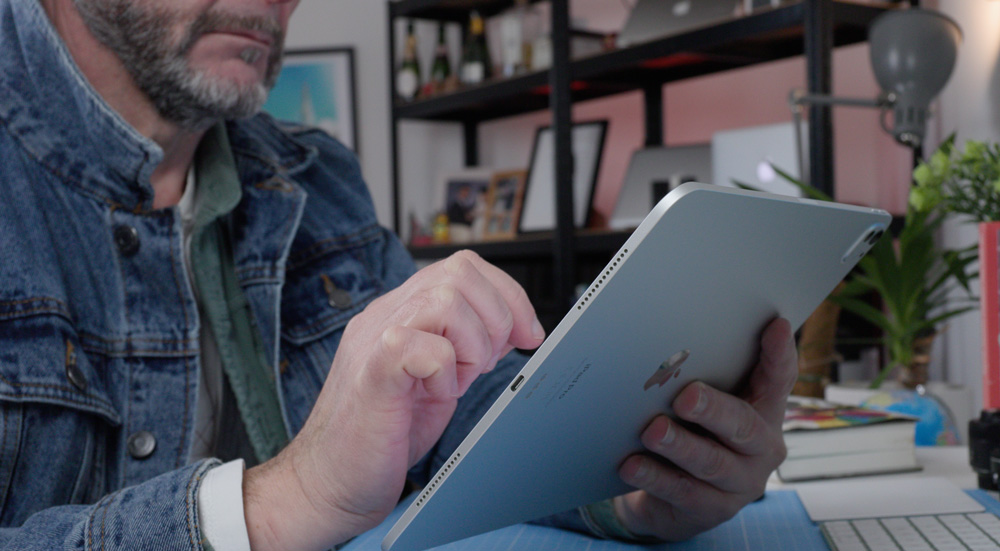
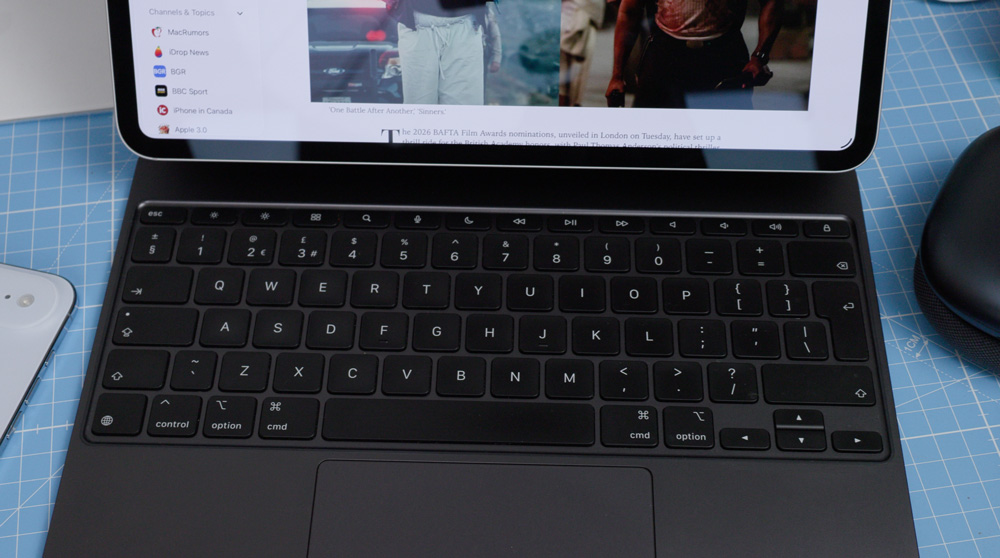
On the keyboard itself, five keys are central to what I’m about to run through with you, so make certain that you’re familiar with the Shift, Globe, Control, Option and Command keys. It’s a combination of those that will have you flying through your work and your iPad in no time with these shortcuts.
Going home
To go back to your homepage, no matter what app you’re using, press the Globe & H key. The Globe & C key will bring up your Control Centre. It’s worth mentioning at this point that to escape any of these shortcuts, you generally just need to use the same key combinations again.
Using the Command & Space bar will bring up search, and you can even use this one when your iPad is locked, too. To quickly check your notifications, use the Globe & N keys.
This next one I’ve found super-useful.
Being a creator and writer, I can have random ideas that pop into my head at all kinds of times. It could be a thought for a story, a video outline or a video title. By using the Globe & Q keys, you’ll find it opens up a Quick Note.
Think of these like good old-fashioned sticky notes, memos or a notebook. With hardly any distraction, you can jot down a quick thought and then later go and find it. You’ll find them in the Quick Notes section of your Notes app, and of course, you’ll be able to refer to them on any of your devices.
If there is only one shortcut you end up using from my suggestions, make it this one. It’s so handy.
You might know I’ve placed a lot of importance on personalising my dock to reach my key apps as quickly as possible. But there will be times, like now, for instance, when I’m working in full-screen mode, that your dock isn’t visible. It’s great for uncluttered working, but what if you need to quickly open up something else? Well, there is a shortcut for that, too. Just hit Globe & A, and your dock will pop up.
Speaking of apps, if there is an app you don’t have on the home screen that you want to find, use the Globe & Shift & A keys to bring up your App Library. If you are working full-screen and want to look at the newly added menu bar at the top of the screen for the app you are currently using, it’s the Globe & M keys you need to hit.
There are a couple of shortcuts that help you get to see all the apps you currently have open.
Using the Command & Tab keys will bring up a set of icons across the middle of the screen. Carry on using the tab key until you get to the one you want, and the moment you let go, that app will open. Or you could use the Globe and Up Arrow, which will show your open apps as tiles or mini windows. Either works well; it’s just personal preference as to which one you’ll end up using.
If you’re working full-screen but then want that app to be in Split View, all you need to do is use the Globe, Control and the right or left arrow. If you want to view an app full-width but at the top or bottom of your screen, then use Globe, Control and up or down arrows.
With the promised improvements coming to Siri later this year, you may find yourself wanting to use it more. Well, the good news is there’s a shortcut for that, too. Use the Globe and S key to launch Siri no matter what app you’re in.
Safari Shortcuts
There are a few shortcuts that make working in Safari easier. I think these port over directly from the Mac, so they may be familiar, but they’re worth me pointing them out to you nonetheless.
To reload a page, use the Command & R key, and it’s the Command, Shift & R to enter reader mode, if the website supports it. To change the text size of a website, use Command along with either the plus or minus key. To return to the page’s original text size, use Command & zero.
Shortcuts for Mail
If, like me, you have multiple email accounts on your iPad, then you can cycle through them simply by using the Command plus the 1, 2, 3 or 4 etc keys.

To retrieve or check for new mail, it’s Command, Shift & N, and to flag an email, all you need to do is use the Shift, Command and L keys. Lastly, if you want to search for an email, use the Option, Command and F keys.
Make the most of your iPad
Don’t forget, try downloading that free PDF I’ve created to help you get used to these iPad Keyboard shortcuts and let me know how you get on.
I don’t want the iPad to be a Mac – I love the differences between them, but when I choose to work on the iPad, I want to be just as productive. The more time I spend on my iPad, the more ways I’m finding to make it work for me.
At last, I think I’m now getting the most from my iPad, and if you try incorporating these shortcuts into your workflow, I’m pretty certain you will too.
