
How one simple change made the iPad work for me!
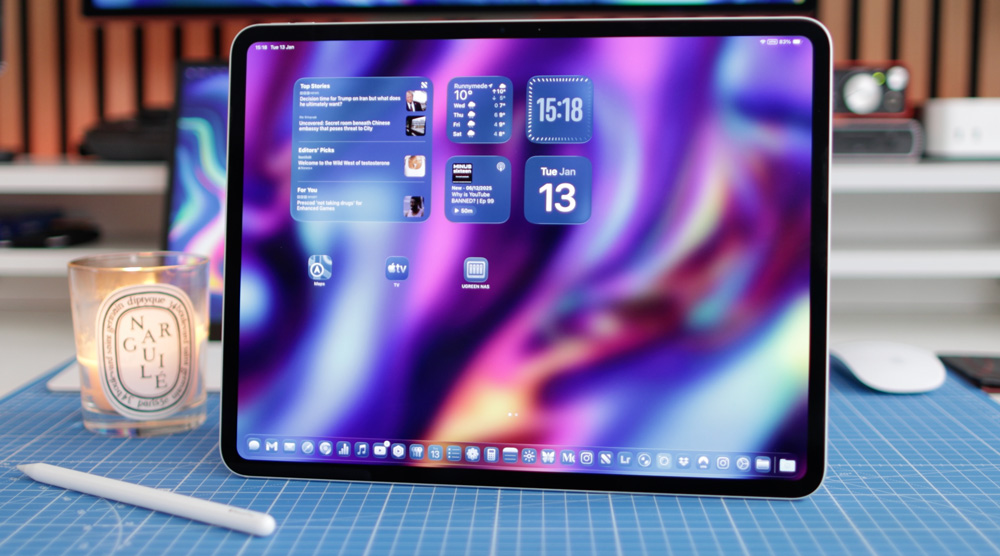
I bought my M4 iPad Pro the week it came out, yet it’s only now that I’ve worked out what it is and how best to use it.
I think part of the problem may have stemmed from the fact that I bought the Magic Keyboard and Pencil Pro at the same time that I bought the M4 iPad Pro, which probably skewed my perspective from the get-go.
I was mistakenly trying to use the iPad as a Mac.
Now, I finally get the obvious fact that an iPad is not a Mac. It was never supposed to be a Mac.
As Steve Jobs said at its launch;
“It’s a third category of device, designed to be more intimate and capable than a smartphone or laptop for daily, casual tasks”.
Not only is the word intimate important in what his vision of an iPad was meant to represent, but he went on to mention that where the iPad wins is by holding the internet in your hand and that it was intended to be better than a laptop at certain. tasks. Listening to music, browsing, emailing and watching videos is where the iPad used to come into its own. But now of course, it is so much more.
Steve got what the iPad was all about – sadly, I’ve only just caught on!
M4 iPad Pro – what changed?
Simply put, I suddenly realised the obvious – that first and foremost, the iPad is a tablet! I know, I know, it sounds too simple an explanation to be true, but it was the moment I that I took it off the Magic Keyboard and used it as a tablet that I started to get the best from my iPad.
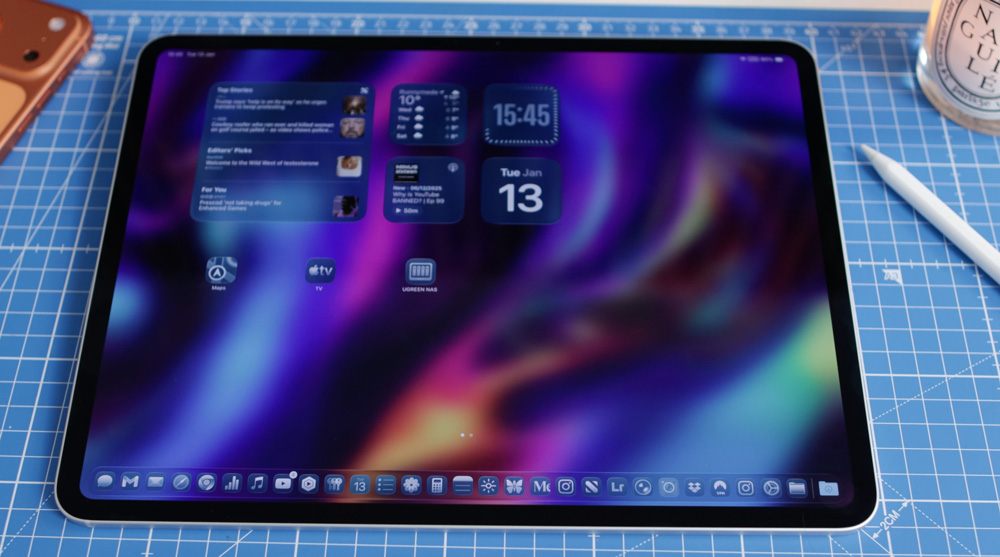
As much as I hate the fingerprints it causes, using the tablet’s touchscreen made everything work that much better. Pinching, zooming, using gestures – all of that suddenly helped to unlock the true character of the iPad.
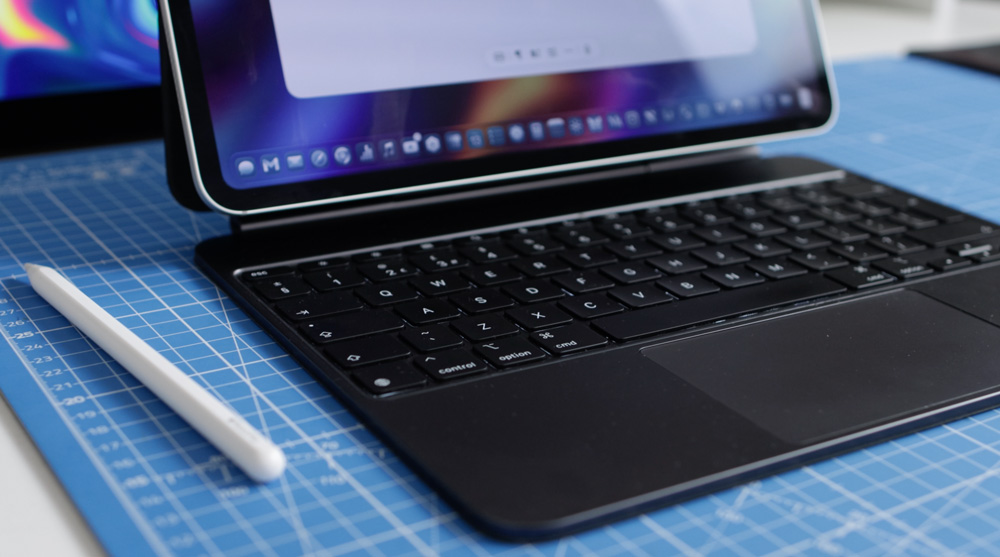
Sure, the Magic Keyboard and pencil have their place, but I find I’m using them far less regularly than I used to, and in turn I’m enjoying the iPad experience so much more.
Leaning into iPad
Because I’ve never felt the love for iPad life, I’d not even taken the time to personalise it and make it mine.
Over the past few weeks, I’ve finally made the dock mine. Until recently, I’d left it just with the apps in the dock that it came with, out of the box. Now, though, I have almost mimicked my Mac and added a number of my most regularly used apps to the dock, making it far more useful and usable.
Apart from the personal apps such as Lightroom and Ulysses that are now living in the dock, two of the most productive and often used ones I’ve added have been the Settings and Files apps.
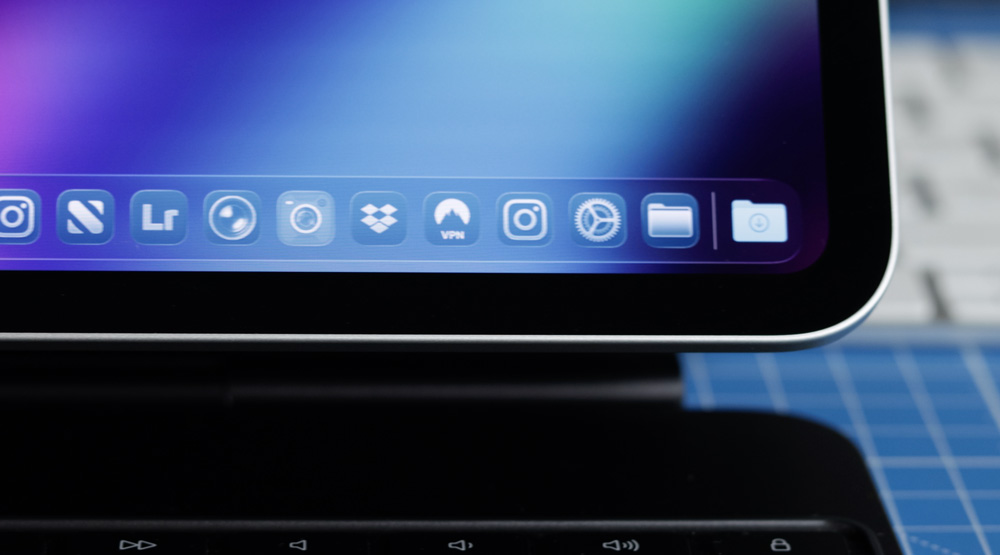
Almost daily, there is something I want to tweak. Before, I had to search my home screen to find the Settings app, which added needless friction. Now, though, the very moment a very tiny change comes to mind, the Settings app is sitting there in plain view.
To that end, I’d also point out that it is part of the charm of the iPad. I find I want to make changes and make my M4 iPad Pro unique to me. It’s a fun way to work.
Part of what iPadOS 26 delivered was to make the Files app something integral to working with an iPad daily. In there, very much like the Finder on a Mac, you’ll find the Recents folder, which is a great way to find a file you were recently working on.
You’ll also find your cloud storage apps there, things like Dropbox and iCloud, tags, the Recently Deleted folder, and most importantly, it’s there you’ll find the Downloads folder. Having quick access to your downloads is a must for working productively on your iPad.
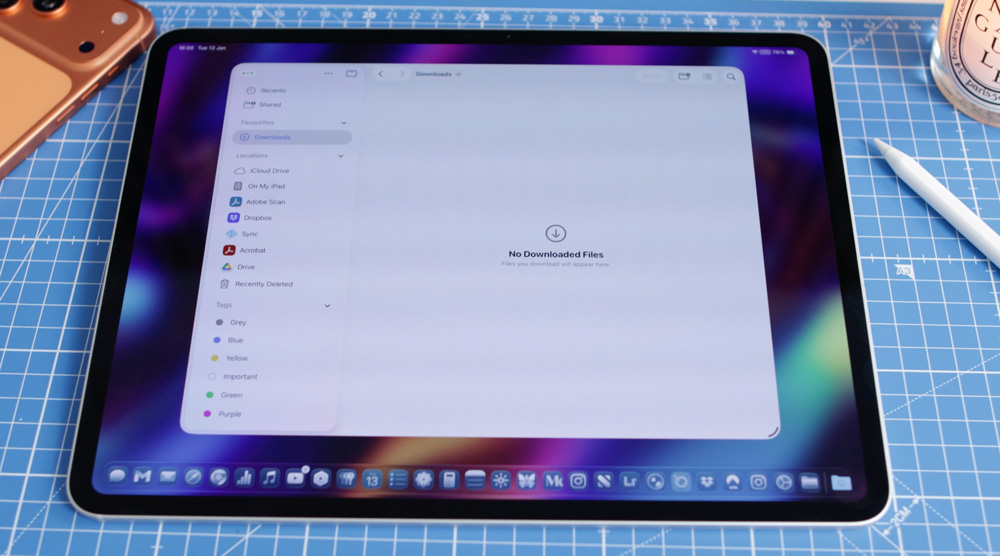
Say you have an attachment on an email you want to sign, annotate or forward, saving it to your downloads folder is the way to go. In the old days, you’d be searching your iPad to find where a file had gone, but now it’s quick, easy, simple and efficient.
Again, it just works.
So if you’re struggling to get on with your iPad, I’d suggest you spend some time making the dock yours and be certain to add the Settings and Files app to it – honestly, it’s been a game-changer.
iPad – first and foremost, a tablet
With the keyboard now pushed to one side most of the time, it’s helped the iPad to do what it was first designed to do and be a tablet.
The keyboard and pencil came later to the iPad lineup for a reason I suspect. The On-screen keyboard is way better than I imagined it to be. Sure, for long sessions such as writing this story, I’ll use the Magic Keyboard, but for more casual work, I’ll often now use the tablet’s on-screen option.
Every keyboard I’ve tried has proven to be glitchy in one way or another, whereas the on-screen keyboard has been 100% reliable. Indeed, often the best way to clear keyboard glitches is to tap the screen – it just works.
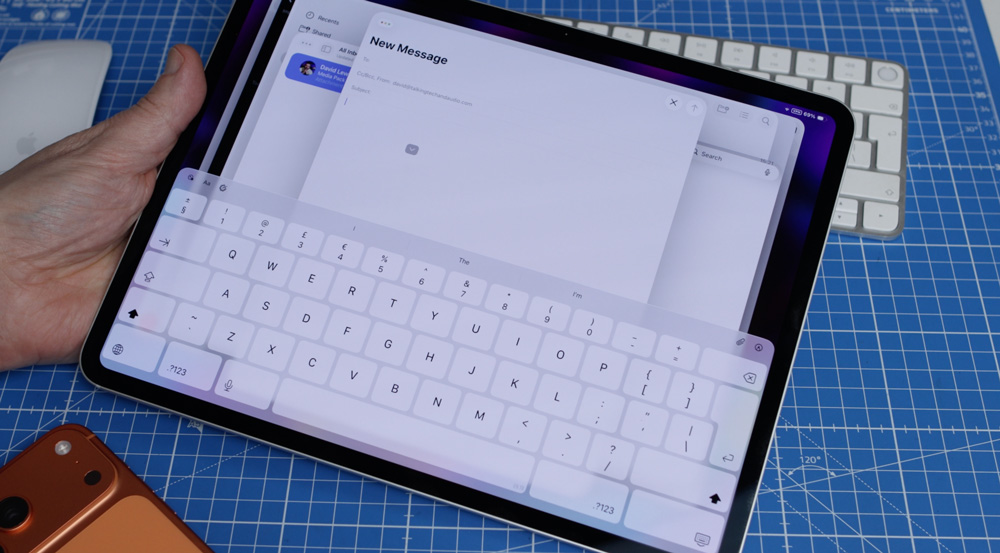
Simple tasks such as selecting and copying text are better with the touchscreen. You can try it with the pencil, but you’ll find it so much easier to just tap the screen.
I’ve even started to use Apple Intelligence on the iPad, too. I’ll now often use dictation to write and email. It’s surprisingly accurate, and any mistakes it may make seem to be easily corrected using the Rewrite or Proofread features that are part of Apple’s Writing Tools.
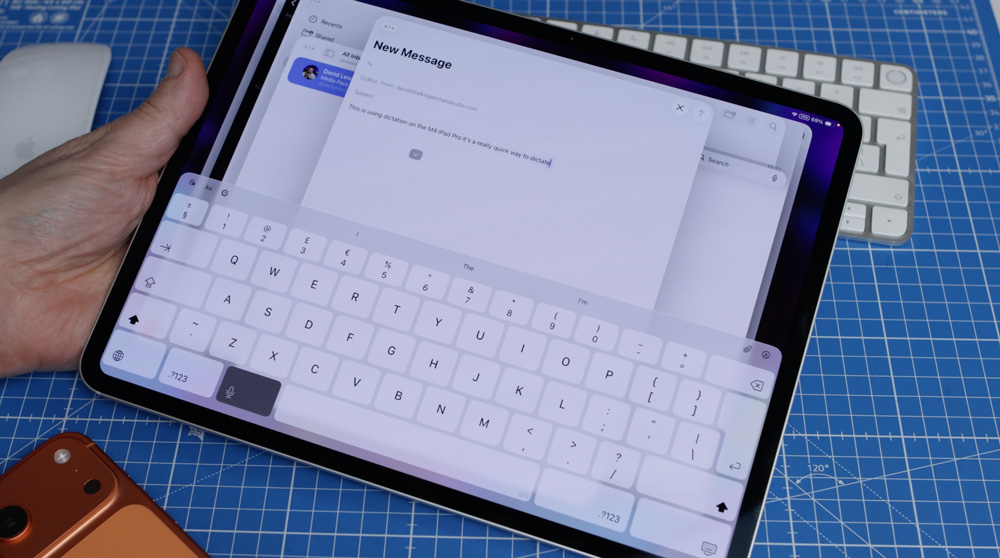
If you haven’t tried dictation on your iPad, give it a shot.
Multitasking
How can I possibly write a story about an iPad without mentioning multitasking?
The thing is, whereas once upon a time multitasking was a confusing mess on an iPad, now it is actually great to use. As with everything on your iPad, there are various ways to achieve the same results, and that is true of multitasking.
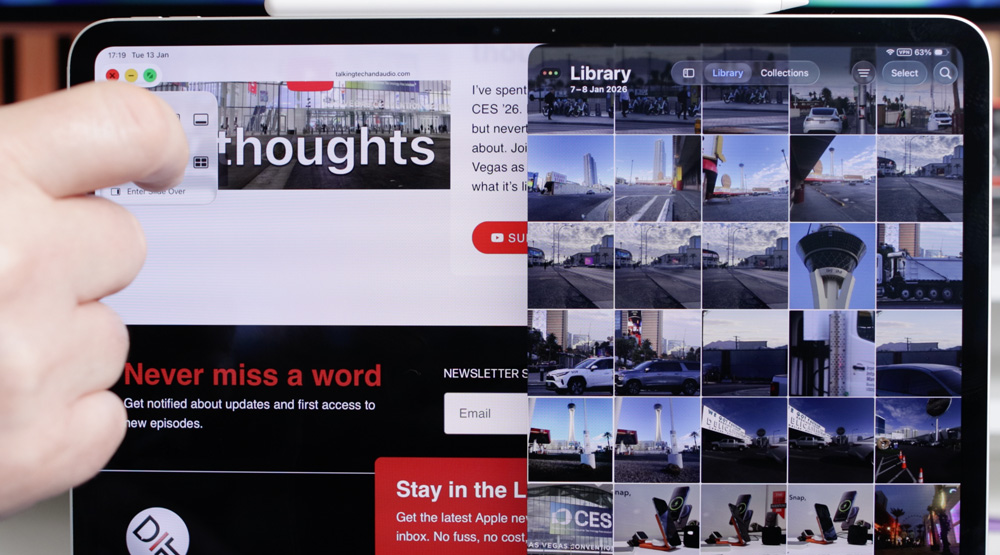
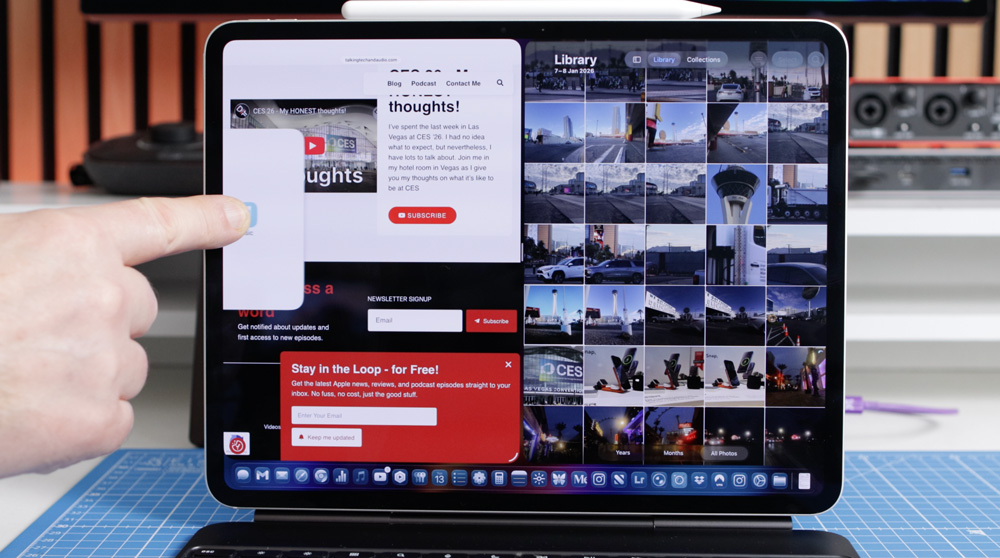
You have the grab handles in the corners of all windows that you can use to quickly resize or rearrange windows. You can also now simply drag an icon up from the dock and position it anywhere on the screen.
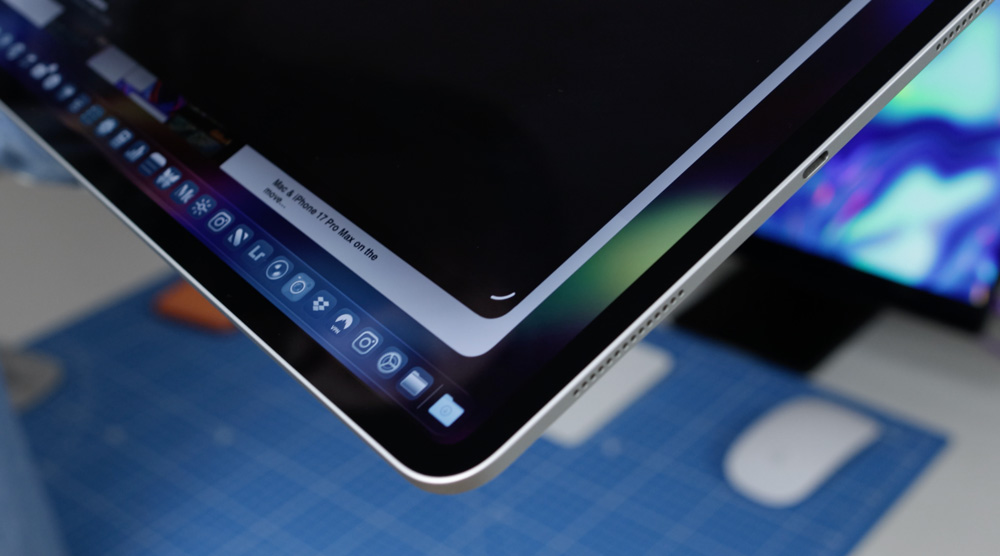
This works great for Slide Over. Yup, with the latest release of the latest version of iPadOS 26, you can now simply push an app to the side of the screen to give you back some valuable real estate. I use this all the time for the music or podcast app – the kind of apps you want open but don’t need to see.
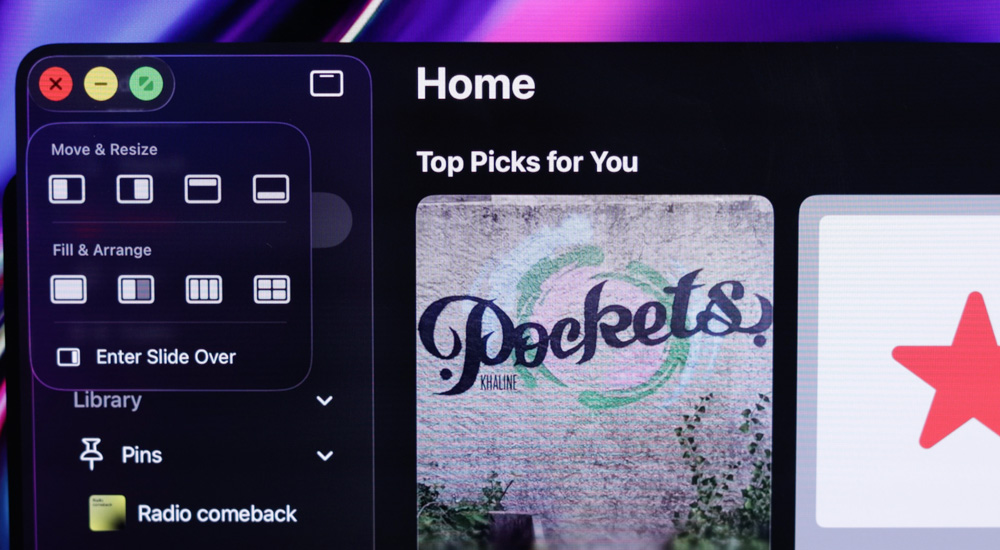
And of course, now, just like the Mac, we have the traffic lights in the top left corner of apps. Long pressing on it brings up all sorts of pre-made layouts for you, such as left-hand side, right-hand side, full-screen or a four-app layout. You can choose to use one of those or scatter screens as you see fit. You’ll also find there is an option for Slide Over there as well.
Again, it not only makes using the iPad different from the Mac but it also makes it fun and personal too. If you do have the keyboard attached, you get the function keys, one of which is the exposé view, but you can just as easily do that with a five-finger gesture on the iPad itself to see what apps you have open.
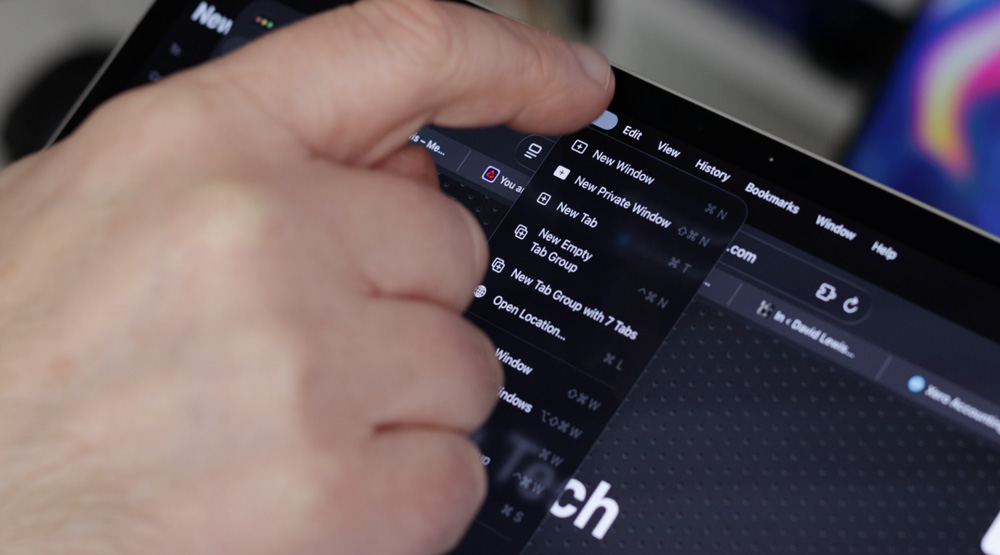
Another neat feature ripped directly from the Mac was the File menu, too. Now, swiping down from the top of the screen in whatever app you happen to be using, you’ll get the familiar menu options such as File, Edit and View.
It all just feels very familiar…
The Pencil
All of this isn’t to say that the pencil and keyboard don’t have their place; they do, but I’m more selective now as to when I use them.
Apart from the more obvious features that we all know about – I’m thinking of the haptic feedback, double tap and squeeze, there are a couple of other Pencil Pro features I love to use.
I know the Pencil Pro has Find My, but I must just be super lucky, as I’ve never had to use it. I guess it works well enough, but I just wouldn’t know!
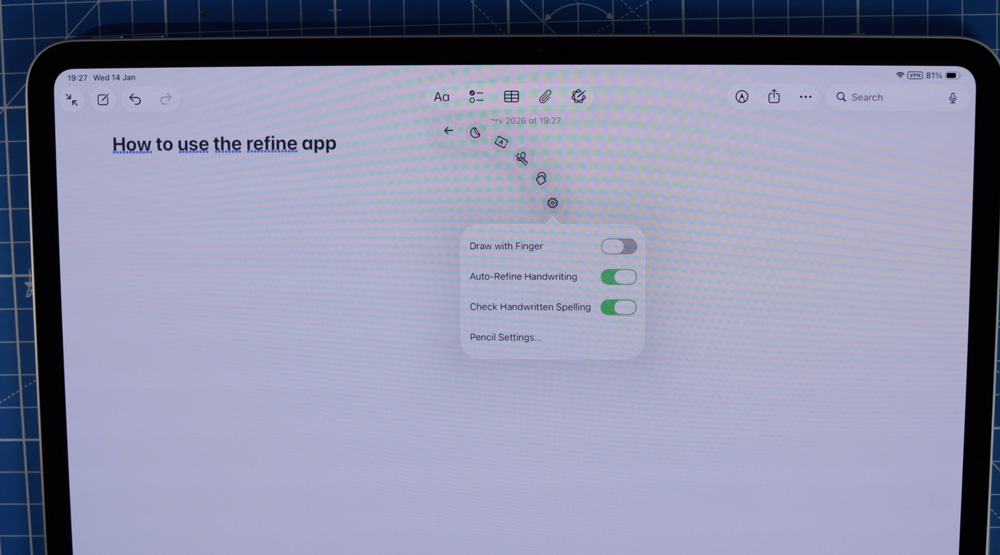
The Hover feature can be super-handy, as can the pressure-sensitive features, too. But one feature that is rarely spoken about is Auto Refine Handwriting. I found it hidden in the tools menu in the Notes app, and it works great at taking slightly dodgy handwriting and tidying up.
Add that to the list of things to try on your iPad when you’ve finished reading this story.
I originally bought my M4 iPad Pro with the Nano texture finish, but swapped it. On the whole, I don’t regret that choice at all. I prefer to have the full brightness and contrast from the tandem OLED display available for when I’m working on the iPad and certainly for when I’m watching content on it.
Where I do miss it, though, is when I’m writing on it. That pencil-on-glass feeling isn’t a great one. For a while, I tried putting on a screen protector, but that had the same problem attached to it as Apple’s Nano texture finish – that’s to say, it’s permanent.
Until I was having a bit of a clean-up in the studio recently, I wasn’t aware I had a magnetic screen protector. Now that has been another revelation. It gives me that tactile paper feeling, but only when I need it.
It’s now a case of the best of both worlds.
The Pencil is also a great way to take screenshots as well. By dragging up from the bottom left corner, you can quickly screenshot anything. Another often overlooked shortcut.
Working hot
One other beauty of the iPad Pro, or any iPad, come to that, is the flexibility it brings to your workday.
The battery is good enough to see you through a good few hours, so there is no need to take any chargers or cables with you and not even a mouse unless you really need one. But if I am working remotely, I’ll often take a portable second display with me. It makes for a great working experience, no matter where you are.
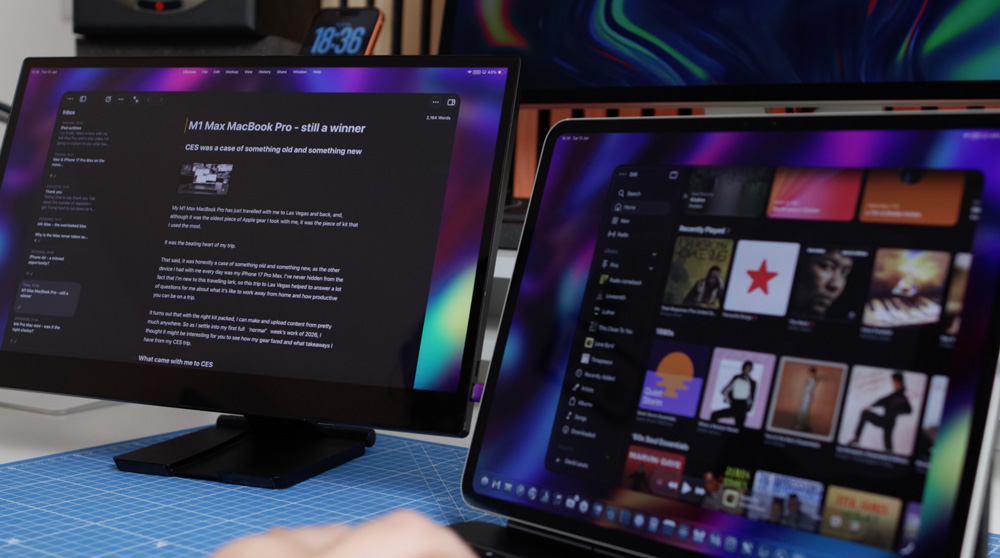
Using a second display back at home or work with your iPad opens up a genuine multi-screen workflow. And of course, don’t forget, if you have a Mac, you can also use Universal Control and Sidecar – two other brilliant Apple ecosystem features come to life once you add an iPad to your setup.
And when I was working in Vegas recently, whilst I was at CES, I even started to use a VPN on my iPad. The one I chose has worked flawlessly, and I leave it on all the time now for peace of mind.
Get to work
I love my iPad now – I’m one of those annoying iPad converts.
I know much of what I’ve said has been kind of obvious, but hopefully it will have helped rekindle your interest in your iPad.
The iPad was never supposed to be a Mac. It was that third way of working, and it does that ever so well.
Once we all get over the iPad not being a Mac stumbling block and start to use it primarily as a tablet, the quicker the iPad will come into its own, and the quicker app developers will improve some of the woeful apps that are out there. YouTube Studio, I’m looking at you!
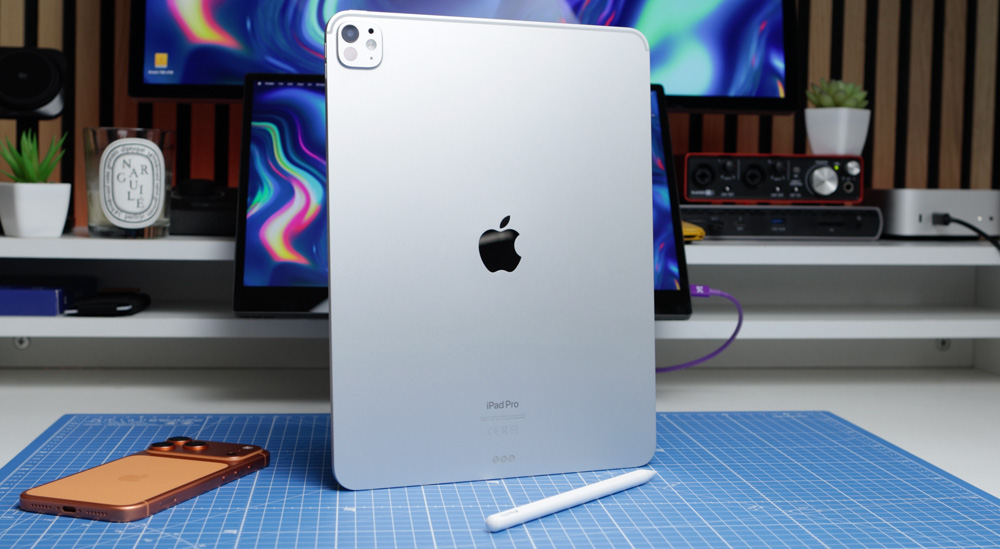
So if you’ve banished your iPad to the bottom drawer of your desk, go find it, dust it off, and start to use and enjoy it the way it was supposed to be used – first and foremost as a tablet!
