
Is it a Mac? Do I want it to be a Mac…no!
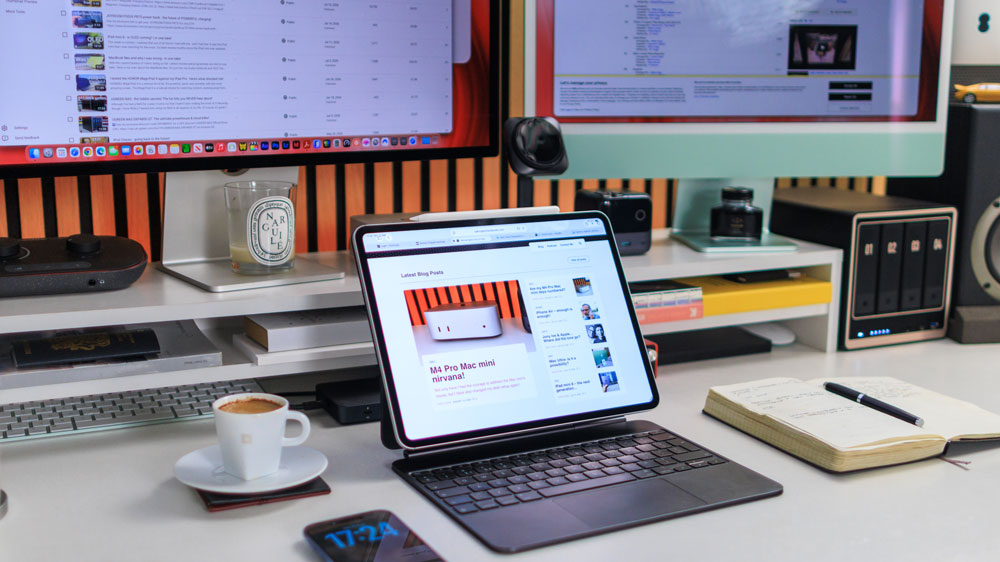
The M4 iPad Pro was a slow burner for me! I must have had it for at least a year before it all suddenly clicked.
Now, now I can’t get enough of it!
A few things happened that made me start to realise just how good the iPad is. There wasn’t a single element that changed my mind; rather, several small, incremental improvements lined up to make me see what I’d been missing out on.
The first of those changes was, well…me!
Time for change
I recently moved studios, and I mention that for a reason.
In so doing, I’ve found a new lease of creative life. The saying goes that a change is as good as a rest – and so it’s proven to be. I now fully grasp what that phrase means – and it also, oddly, applies to how I choose to work each day.
I’ve recently spoken about how I’ve managed to recover some of the lost speed on my M4 Pro Mac mini, and it now once again feels fast and snappy. But every so often, I’ll sit down to work and just fancy a change – a change for change’s sake – a change is indeed as good as a rest!
The way I see it, you have to want to use an iPad to really make it work for you.
There’s little point in trying to deny that most everything I do on the iPad could be done on a Mac – but sometimes I just want a change of scenery to keep the creative juices flowing!
Some tasks are without doubt better carried out on a Mac, but then again there are others that are best suited to iPad.
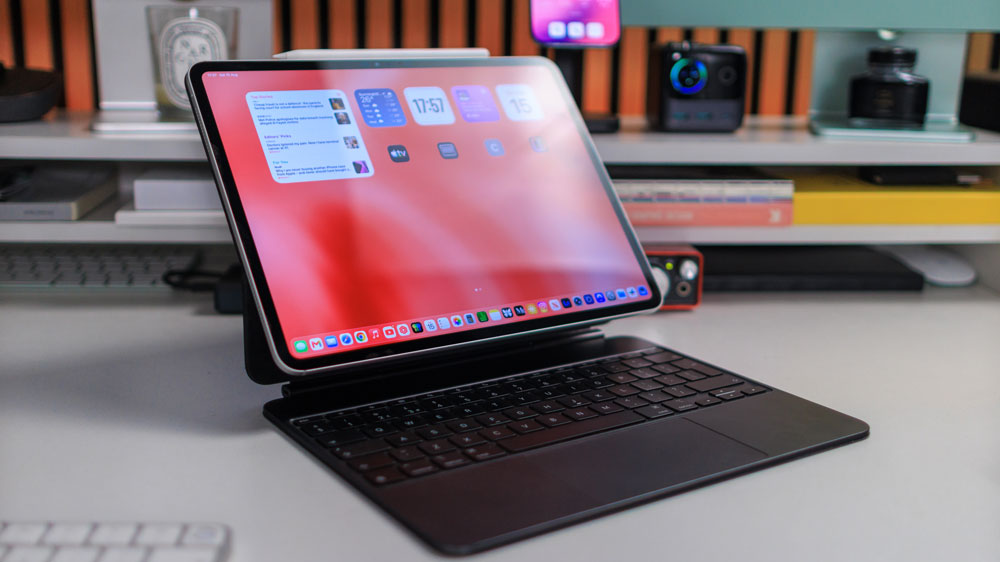
Buying the right iPad Pro isn’t as straightforward as you might think – if you’re an iPad Pro newbie, then there are a couple of points you should be aware of before you part with your cash. They’re the kind of details that are easy to overlook, but in the course of time will come back and bite you hard if you get them wrong.
And it will be an expensive mistake!
The details I’m speaking about are hidden deep within the tech specs. If you buy an iPad Pro with either 256GB or 512GB of storage, then you’ll only get a 9-core CPU which’ll have only three performance cores and a 10-core GPU. The 1TB and 2 TB models, on the other hand, have both a 10-core CPU and a 10-core GPU, and you’ll get an extra CPU performance core on both models too.
More importantly to note, though, is that the two lower-end iPads only have 12GB of RAM but the two higher- spec’d models have 16GB. Depending on how you’re going to be using your iPad Pro, that could prove important.
One other choice you’ll only get to make on the 1TB or 2TB versions is the Nano texture finish – and that continues to baffle me. I mean it’s not as if Apple are giving this finish away for free! They’ll still charge you an extra £100 for the privilege, but I don’t see why the storage configs would affect you wanting a Nano texture finish.
With the chip specs, it makes more sense. I guess if you’re buying an iPad with the extra storage, then there’s a good chance that you’ll be handling bigger files and generally pushing your iPad more. But that doesn’t hold with the matte display finish, now does it?
Please, explain that choice from Apple to me! I’m all ears!
Nano or not?
The whole Nano texture debate is a tough one to offer any solid advice on.
Initially, when I bought mine, I ticked the Nano-texture option box, but within two weeks I’d changed my mind and swapped it for a model without Nano-texture. Make no mistake, it does its job ever so well and means you’ll get virtually zero reflections. It’s also a far better experience when using the pencil.
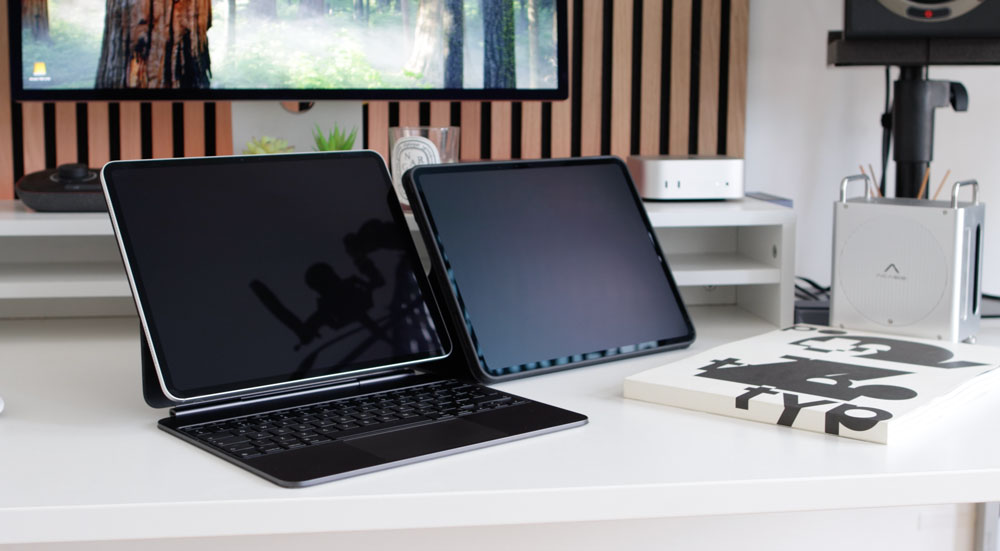
Overall, the feeling is way more tactile with a Nano texture finish – but it comes at a price.
The trade-off is that when you settle back and want to watch a movie or some other content on your iPad, then you’ll find the colours are way more muted and flat.
If I had to give any advice on this, it would be that if you’re an artist or an architect or someone who regularly uses a pencil, then it would probably be worth having it – other than that, I’d swerve it.
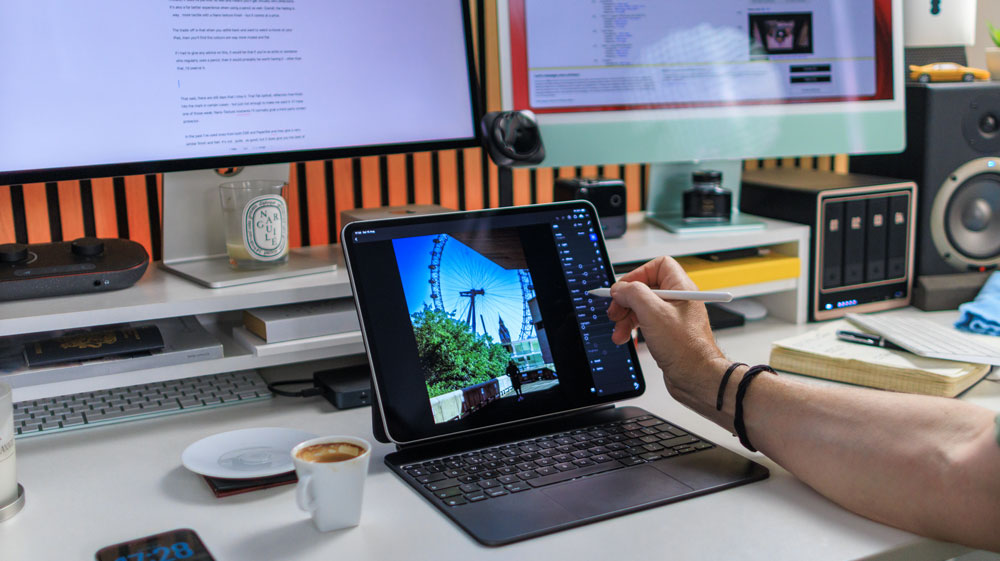
That said, there are still days that I miss it. That flat reflection-free finish hits the mark in certain instances – but just not often enough to make me want it full-time. If I have one of those weak, Nano-texture moments, I’ll normally grab a third-party screen protector.
In the past I’ve used ones from both ESR and Paperlike, and they give a very similar finish and feel. They’re not quite as good, admittedly, but they do at least give you the best of both worlds – particularly the ESR one, which is magnetic.
One last point I wanted to make about the display is that it remains the best display I’ve ever seen or used! Nothing comes close to it. I love bright displays, and this one offers so much brightness that even I don’t often run it fully cranked up.
That’s actually a good thing, as using the display at 100% brightness for any length of time is the quickest way I’ve found to drain the battery – fast!
With the display at around 75% though, the battery life is fine. It’ll easily last a day of average use.
M4 iPad Pro I/O
In short – there’s not enough!
In Apple’s mind, it’s clear to see that they view the iPad Pro as being an iPad for, well, Pros! If you can buy an iPad Pro with 2TB of SSD storage, then I’d assume they’d imagine that you may be doing some pretty hardcore work on it.
So, although that port we have is quick with up to 40Gb/s of data transfer speed – why oh why do we only have one? Even if it wasn’t another Thunderbolt USB 4 port, having a second USB-C port of some kind on the iPad Pro would just seem to make some sense.
Say you want to run a second display and use an external SSD simultaneously…as it stands, you’re screwed unless you use a dongle of some kind, which ruins the aesthetic and is a clumsy solution.
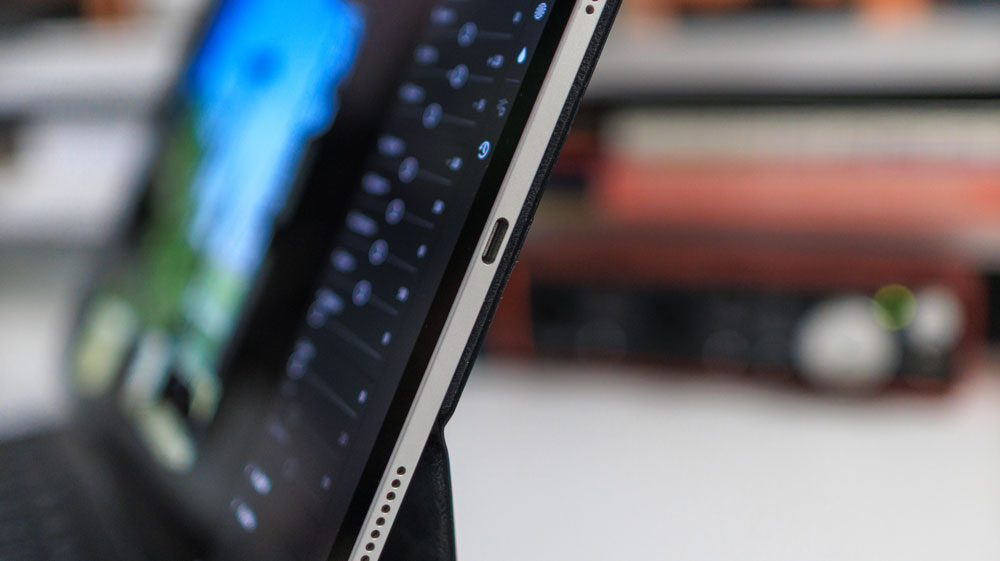
And although this next point only pertains to my photographer and video editor friends, is it honestly too much to ask for an SD card slot too? I mean I know the iPad is wafer thin, but an …SD card is even slimmer!
The iPad scales up perfectly when I use my Studio Display with it – in fact they’re made for one another, and it’s a workflow I love using. Two gorgeous displays, one in front of the other.
Another way that the iPad comes in handy day-to-day is with its Sidecar and Universal Control functionality. It’s areas like that where Apple still shines. While I may not use it every day, it’s a great workflow to have in my back pocket and brings the Mac & iPad together in such a seamless manner.
And one other gripe that continues even after the massive strides forward that the latest iPadOS has made is that outside of highly specialised enterprise use cases we still don’t have the ability for a multi-user login. Putting corporate, money-making reasons to one side, can anyone explain that to me?
The accessories
When I bought my iPad Pro, I bought the Magic Keyboard and the Pencil Pro.
Until recently, I’d only ever used the iPad with those proprietary accessories. The keyboard, or at least a keyboard, is pretty essential. I can’t imagine using an iPad Pro without a keyboard of some sort, but is Apple’s Magic Keyboard honestly worth £350?
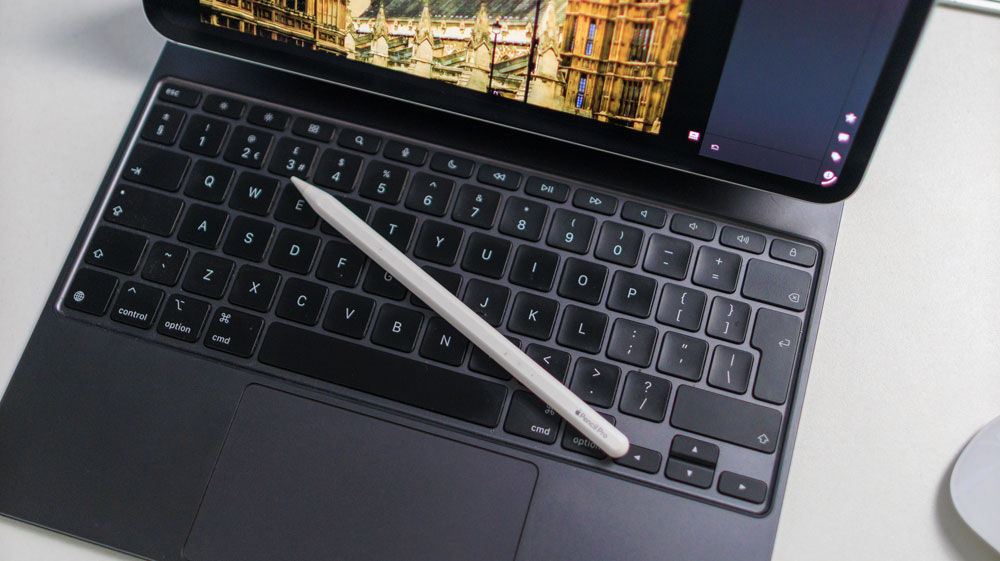
I’ll give you that it’s lasted well, is good to use, and it has the Globe key, which not all other third-party keyboards have – and I’ll explain why that’s so important in a moment, but there are other options out there that I like and use as well.
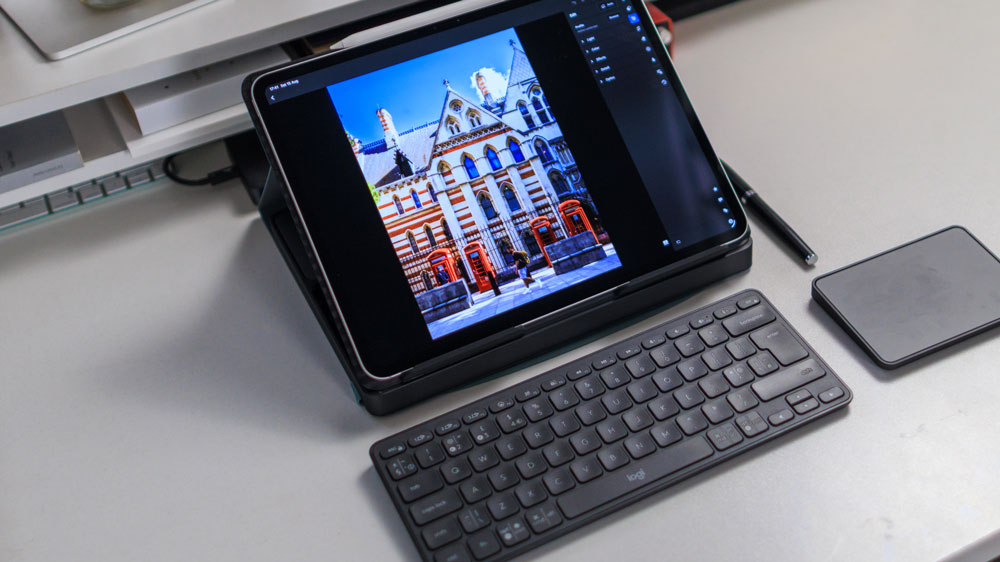
ESR has a keyboard that I took to CES earlier this year. It’s robust and comfortable to use and is backlit too. Recently I’ve just come across a very tidy setup from Logitech – the CASA pop-up desk solution.
It’s crazy convenient to use, and I love how ergonomic it is. The keyboard is a typical, quality Logitech keyboard with great key travel and predictability, and you also get a neat mini-trackpad included too. I wish the keyboard was backlit and had a Globe key, but other than that, it’s one of the best non-Apple options I’ve used.
Another point I thought I’d throw into the mix regarding Apple’s accessories is: don’t you think it would be a cool idea if they incentivised us to buy them?
Imagine if you were offered a 25% discount as a one-time offer as you bought your iPad Pro – a bundle option kind of thing? Not only might it tempt those that hadn’t already put the pencil & keyboard in their basket, but for those that have, it would be quite a nice little sweetener, wouldn’t you say?
As to why I keep mentioning the Globe key, well, it’s simple…it unlocks so many keyboard Shortcuts.
The Shortcut to success
I said earlier that there were a couple of other factors that all of a sudden made the iPad make sense. One of those was the Files App, and the other was keyboard shortcuts.
I guess it comes from all those years of being a Mac user that keyboard shortcuts made such a difference to the usability of my iPad. They just make the iPad experience quicker, more seamless and more fluid. I know we’ll all have our favourites, but I thought I‘d jot down some of mine in case they’re new to you.
To get to your App Library, it’s Globe/Shift/A. If you have two apps open and you want to arrange how they appear, rather than using the Traffic Lights, you could use the shortcut Shift/Globe/Control and then any of the four arrow keys on the Apple Magic Keyboard.
If you want to check the menu for any app that you’re in, then it’s simply Globe/M you need. To see your dock at a glance, you need to hit Globe/A, and to take any app full-screen, it’s Globe/F. A particularly handy one I like is Globe/C to take you to your Control Centre.
If you tap Globe/H, that’ll take you back to your Home Screen and then drag down with two fingers from the top centre of your screen, and that will then bring up search, which I use all the time – for dollar-to-pound conversions for example.
And finally, a good old favourite which carries over directly from the Mac is Command/Shift/Tilda, which not only shows you what apps you have open, but will also let you scroll through them until you hit the one you want.
I’ve created a full PDF of keyboard shortcuts which you can download for free here. I’m sure now you get why I need a keyboard with the globe key!
The Files app
Almost single handily this was the app that unlocked everything for me and, in particular, the Downloads folder inside the Files app.
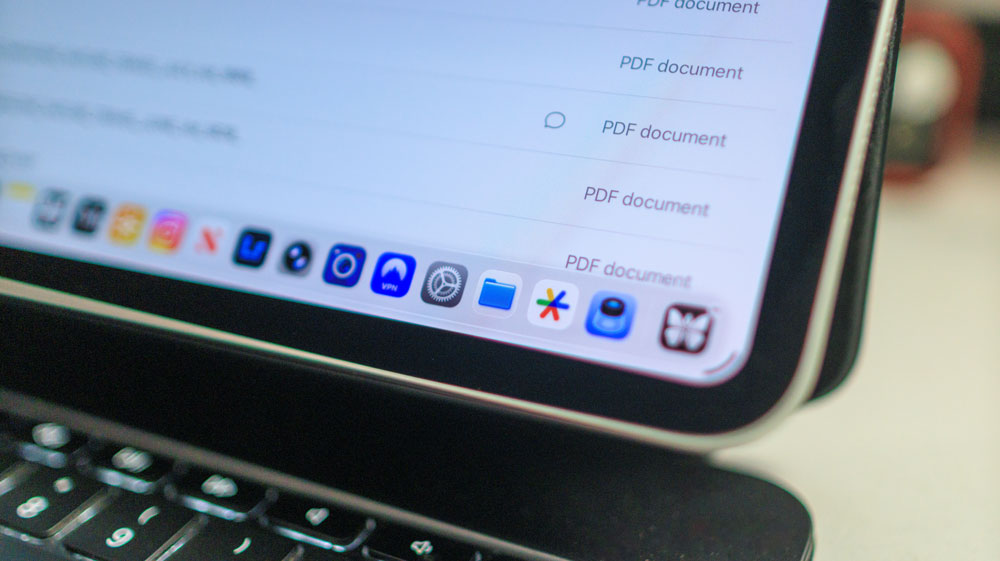
I think it’s so useful that I now have my Files app in my dock. For years my dock was left as it was out of the box, but now it more closely resembles my Mac’s dock – this is all about speed and productivity.
You’ll notice that you can access your various cloud drives from the sidebar in the Files app – but I prefer to use the actual native apps for that. The most important sidebar option there, though, is your iCloud Drive. From there you’ll see your Downloads folder.
Once you start to make the Downloads folder your friend, I promise you, you’ll never look back. For instance, say I have an invoice sent to me attached to an email that I want to send to my receipt bank. Well, all I need to do is save the PDF to my Downloads folder, and then I can find it and drag it to my receipts app.
Documents that need signing are a blast on the iPad, and it’s one of the areas in which it beats the Mac hands down. First, I convert any Word Documents to PDFs on my Mac, as I don’t have Word on my iPad; then I’ll save the PDF to my downloads folder.
From there, it’s just a case of grabbing the tools you need from that box & pen tool at the top of the Preview app page. Click the plus icon to add your saved signature, position it as you wish, resize it, and you’re done.
It used to be such a pain to do on a Mac, but the iPad makes it a breeze. Scanning documents is also way better on an iPad. Productivity isn’t always sexy, sometimes it’s the practical functionality that matters.
Screenshots are easier on the iPad too, if you ask me. Use the Pencil to launch the shortcut from the bottom left corner of your iPad, resize it with your finger, and that’s it – yes, on occasion, using your finger is still the best way to work on an iPad – and save the file to your Downloads folder or Photos – it’s honestly as simple as that.
Or you can even use Command/Shift/4 if you’re still stuck in Mac lingo to do screenshots the old-fashioned way. I’ve only just found that one out myself!
Loving iPad life
Whilst I wouldn’t dream of using the iPad for certain creative tasks such as audio or video editing, for the most part, now, it’s a perfectly reasonable substitute.
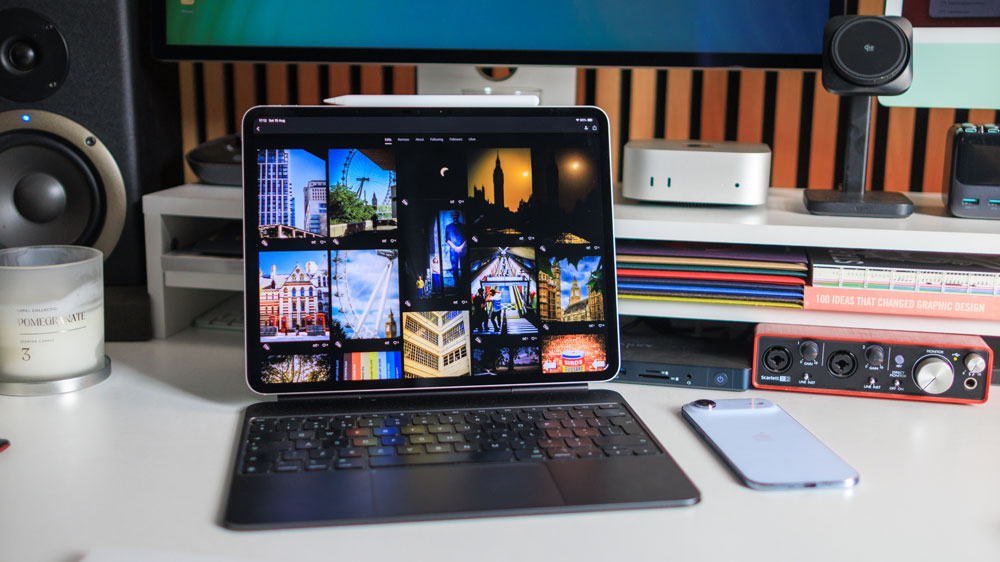
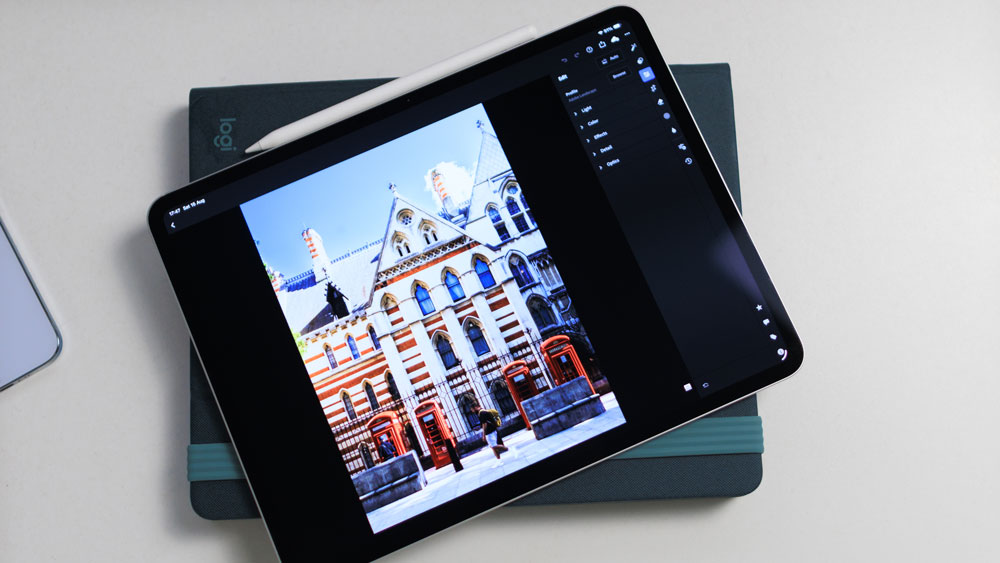
Photo editing in Lightroom is a breeze because of the pencil, and the same goes for Photoshop. And as for apps that don’t translate well to the iPad, that honestly has more to do with the app developers rather than the iPad or iPadOS itself.
Last year’s release of iPadOS saw massive improvements in making the iPad a genuine alternative to a Mac. I never thought I’d take to an iPad this much or enjoy working on it so much – but hey, I’m all for change these days.
Is it a Mac replacement? No, and I don’t want it to be either. I love the nuance shift and slightly different ways you get to work on an iPad Pro. If it were the same as a Mac, what would be the point?
The thing I won’t be doing any time soon on my iPad, though, is jotting down notes! Nope, my Moleskine notebook and fountain pen will do me just fine – but for everything else, the iPad offers me a breath of fresh air whilst still being quick and productive.
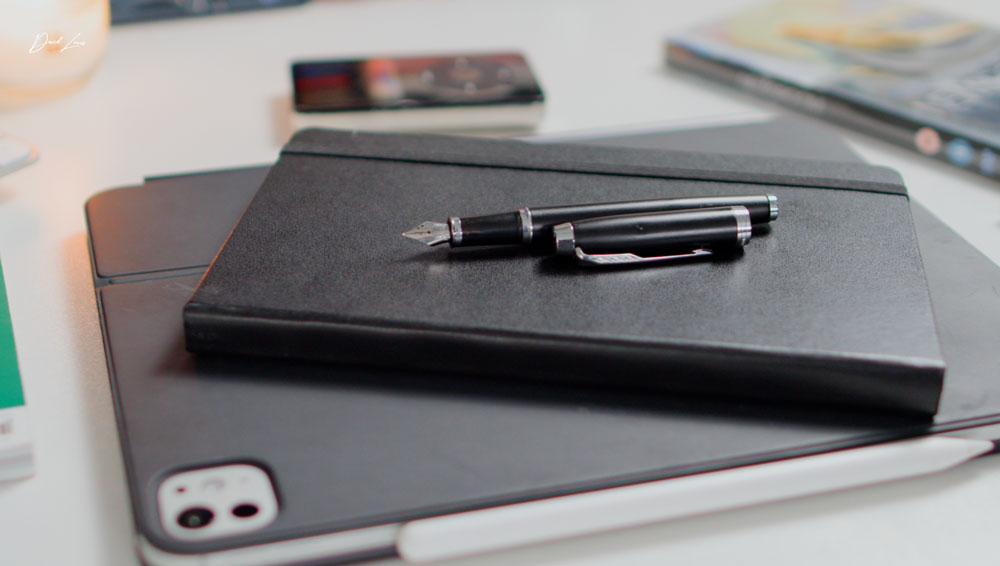
iPad life – lean into and it works just fine!
